AirVenture is the busiest week in general aviation. Thousands of aircraft arrive at Wittman Regional Airport (KOSH) from every direction, following one of the most detailed NOTAMs in the country. A little preparation in ForeFlight doesn’t just save you time, it keeps you safe.
If you're brand new to ForeFlight, download the app from the Apple App Store to create your account and start your free trial.
Get your devices ready
Before anything else, make sure every part of your setup is up to date.
Update your software and firmware
Update iOS or iPadOS
Go to Settings > General > Software Update and install any pending updates. Skipping this step risks compatibility issues between ForeFlight and the latest iOS APIs, especially for Bluetooth ADS-B receivers and split-screen multitasking.
Update ForeFlight
Open the App Store and tap your profile icon, then scroll to App Updates and install any available ForeFlight update.
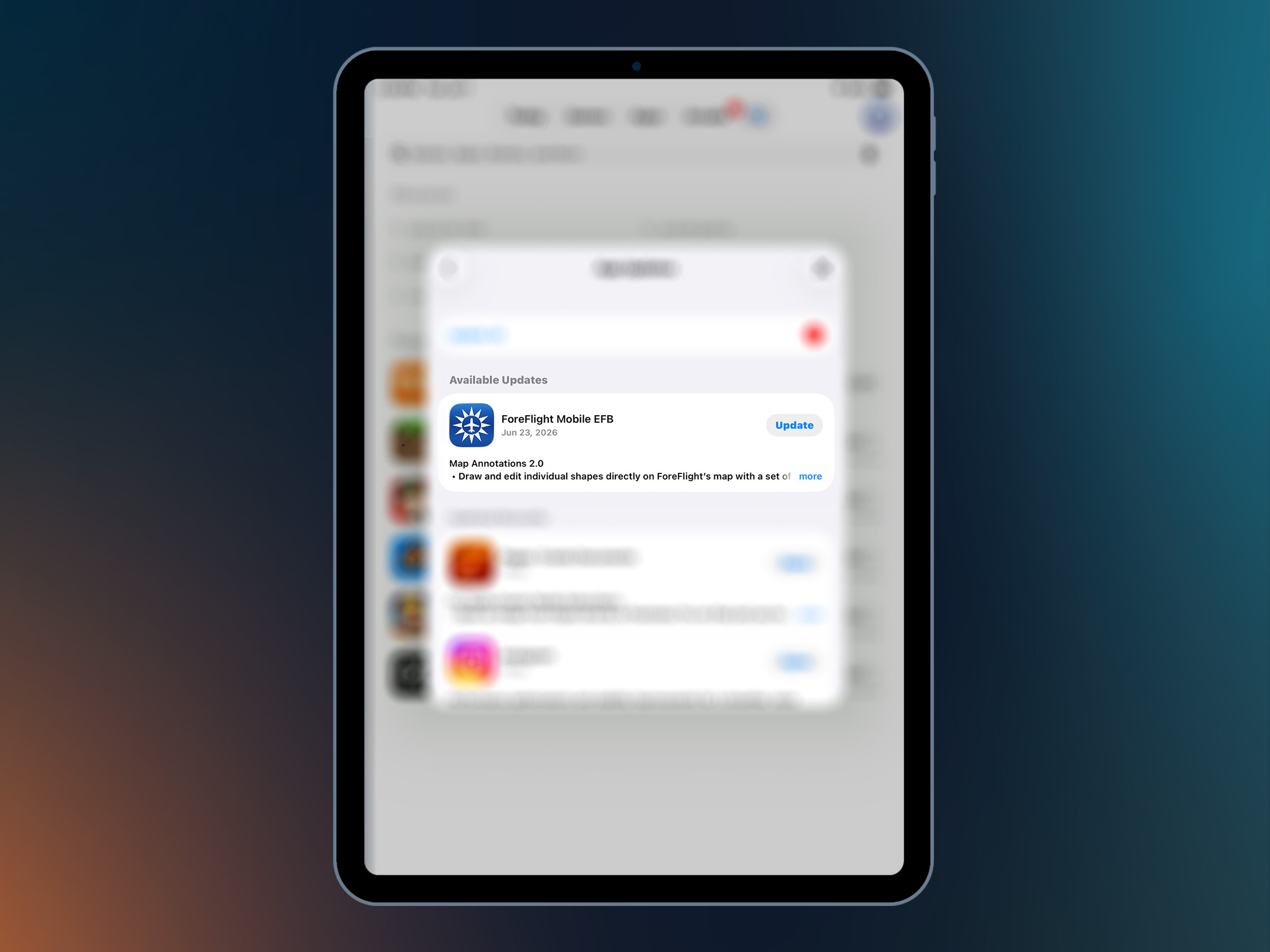
ForeFlight releases regularly include performance improvements, bug fixes, and other updates you’ll want before a busy flight into KOSH.
Update your ADS-B receiver firmware
If you fly with a Sentry or Sentry Mini, open ForeFlight with the device connected.
Navigate to More > Devices. If a firmware update is available, you'll see an alert. Tap Update and keep ForeFlight open until the update is complete.
If you use another ADS-B receiver, check the manufacturer's instructions for available firmware updates.
Charge your devices
Start your trip with a full charge on your iPad, iPhone, portable battery packs, headset, and other electronics. It’s a good idea to bring the appropriate charging cables and backup power for your setup as well.
Build your packing list and review the Notice
Build your packing list in Scratchpad
ForeFlight's Scratchpad gives you a convenient place to keep quick notes available in the cockpit. Use it to build a packing list you can reference while loading the aircraft.
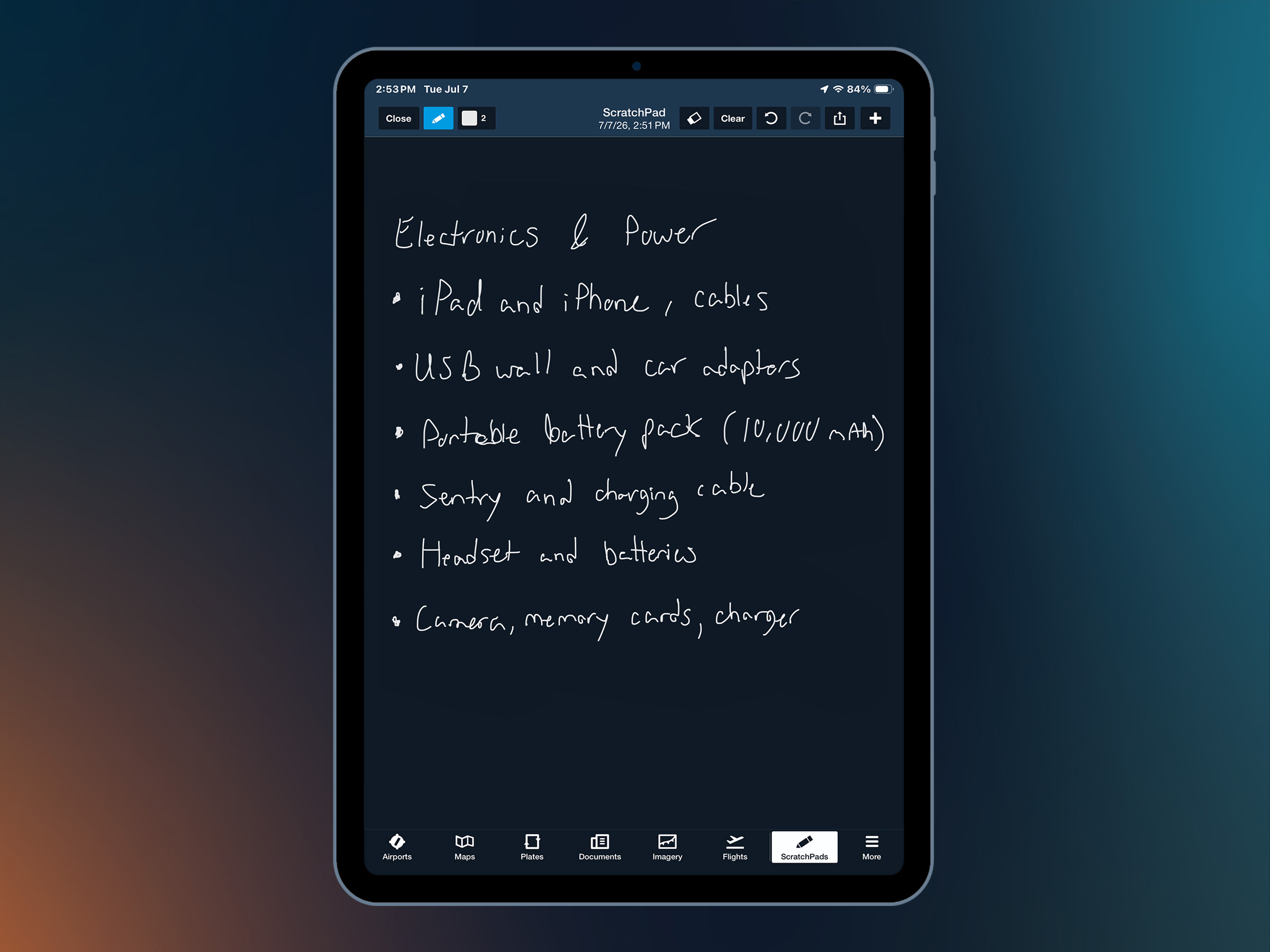
Here's a suggested list to get you started:
Electronics and power
- iPad and iPhone, charging cables, and spare charging cables.
- USB wall and car adapters
- Portable battery pack (I suggest 10,000 mAh or larger)
- Sentry or ADS-B receiver and charging cable
- Headset and spare batteries or charging cable
- Camera, memory cards, and charger
Clothing and sun protection
- Hat
- Sunglasses
- Sunscreen
- Lightweight long-sleeve shirt
- Rain gear
- Comfortable walking shoes
Camping and airshow essentials
- Tent, sleeping bag, and ground pad
- Water bottle or hydration pack
- Cash
- Earplugs
- Small backpack or day bag
- EAA membership card
- Snacks and a small cooler for the flight
Find and annotate the EAA AirVenture NOTAM
The FAA publishes the official EAA AirVenture NOTAM ahead of the event, and you can access it directly in ForeFlight:
- Open Documents.
- Open the ForeFlight Drive in the Catalog list.
- Find the EAA AirVenture Oshkosh 2026 NOTICE and tap to open it.
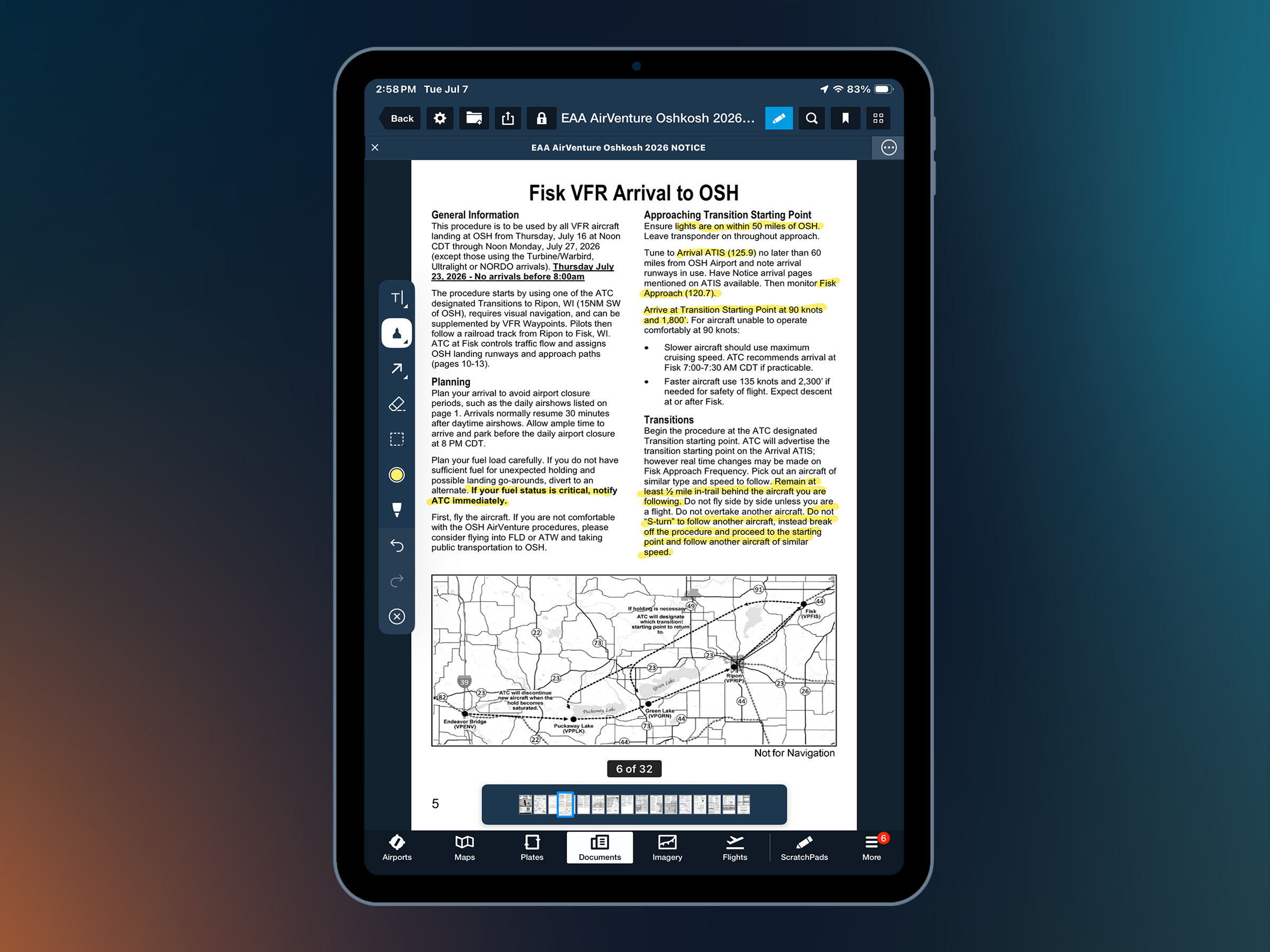
The NOTAM contains a lot of information. Use ForeFlight's annotation tools to highlight the procedures and details most relevant to your flight.
Tap the pencil icon to enter annotation mode, then highlight important altitudes, speeds, frequencies, and arrival procedures. You can also add notes to make key sections easier to find in flight.
Configure your map for the flight
Download maps for offline use
Cellular coverage can be limited along portions of a cross-country flight. Download the charts and data you need before departure so they remain available regardless of your connection.
- Go to More > Downloads
- Under Region Settings, select the states or regions along your route, then tap the download icon.
Be sure to include Wisconsin and at least one state on either side of your route as a buffer.

Add map annotations
ForeFlight's Map Annotations let you place notes directly on the map, making it easy to keep reminders near the locations where they apply.

How to add an annotation
- Long-press a point on the map to place a pin.
- Tap More next to your pin in the Add to Route menu.
- Tap Save.
- Give the annotation a short name.
- Choose a color and add details in the Description field.
- Tap Save again.
You can then move the annotation to the exact location where it applies.
Consider adding reminders for key points along your planned arrival. Here are some ideas to get you started:
- 50 miles from KOSH: "LIGHTS ON. Required within 50 miles of OSH"
- Within ATIS range: "Tune 125.9. Check ATC's advertised transition starting point before proceeding.
- At transition starting point: Join single file, ½ mile in-trail, 90 KIAS / 1,800 MSL. (For a twin or retractable that won't slow to 90, use: 135 KIAS / 2,300 MSL.)
- Ripon, WI: "Follow the railroad tracks NE toward Fisk. if spacing gets tight, break off and re-enter at the transition starting point. No S-turns."
- Fisk, WI: "Listen for color/type callout on 120.7. Rock wings to acknowledge controller. No verbal response needed"
- Final approach: "Land on assigned colored dot"
- KOSH ramp: "Follow flagpersons only. Display a printed parking/camping sign in windshield"
Setup Track Vector for arrival spacing
Maintaining proper spacing is critical during the Fisk Arrival. ForeFlight's Track Vector extends from your ownship to show your projected position based on your current ground track.
Setting the Track Vector to ½ nautical mile can give you another visual reference for monitoring spacing.
- Tap More > Settings.
- Type Track Vector in the search bar or simply scroll to the Map View section to enable Track Vector.
- Tap Track Vector Length and select ½ Nautical Mile.

The Track Vector follows your GPS ground track rather than aircraft heading, accounting for wind drift as you fly.
Always follow the current AirVenture Notice and ATC instructions for arrival spacing and procedures.
Check fuel prices along your route
Fuel prices can vary significantly from one airport to the next. ForeFlight displays reported 100LL and Jet-A prices right on the map to help you compare options while planning your route.
Under the Aeronautical options in the Layer Selector, select Fuel: 100LL or Fuel Jet A to display fuel prices at airports on the map.
You can also open an airports information page and review available FBOs and reported fuel prices.
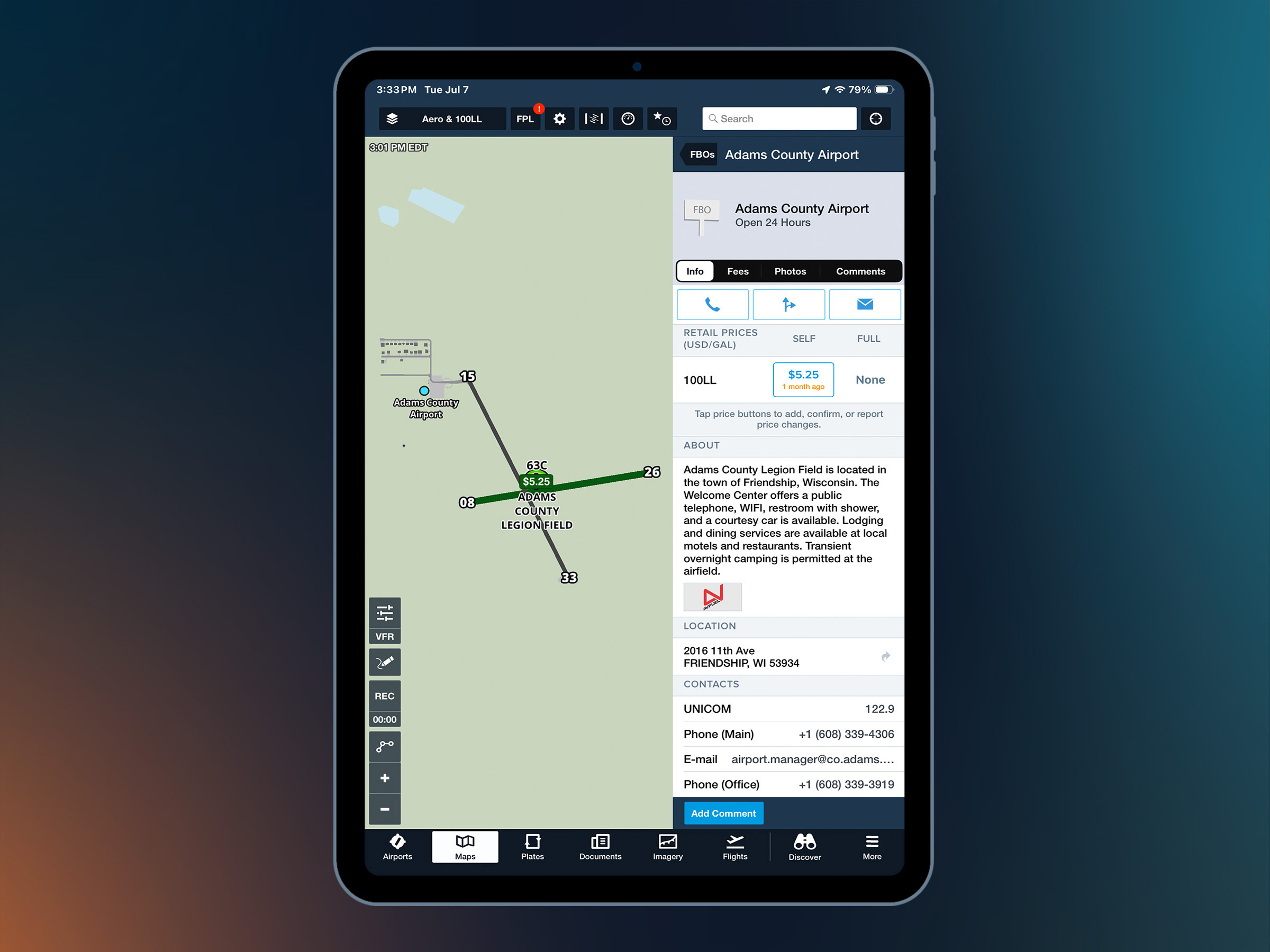
If you encounter a different price during your trip, you can submit an update from the FBO page to help keep the information current for other pilots.
Turn on Glide Advisor
Glide Advisor displays a range ring on the map to help you visualize the area potentially within gliding distance based on your aircraft’s performance and current altitude.
To enable Glide Advisor:
- Open Map Settings (gear icon).
- Find Glide Advisor and enable it.
- Tap Glide Settings and enter your aircraft's glide performance information.
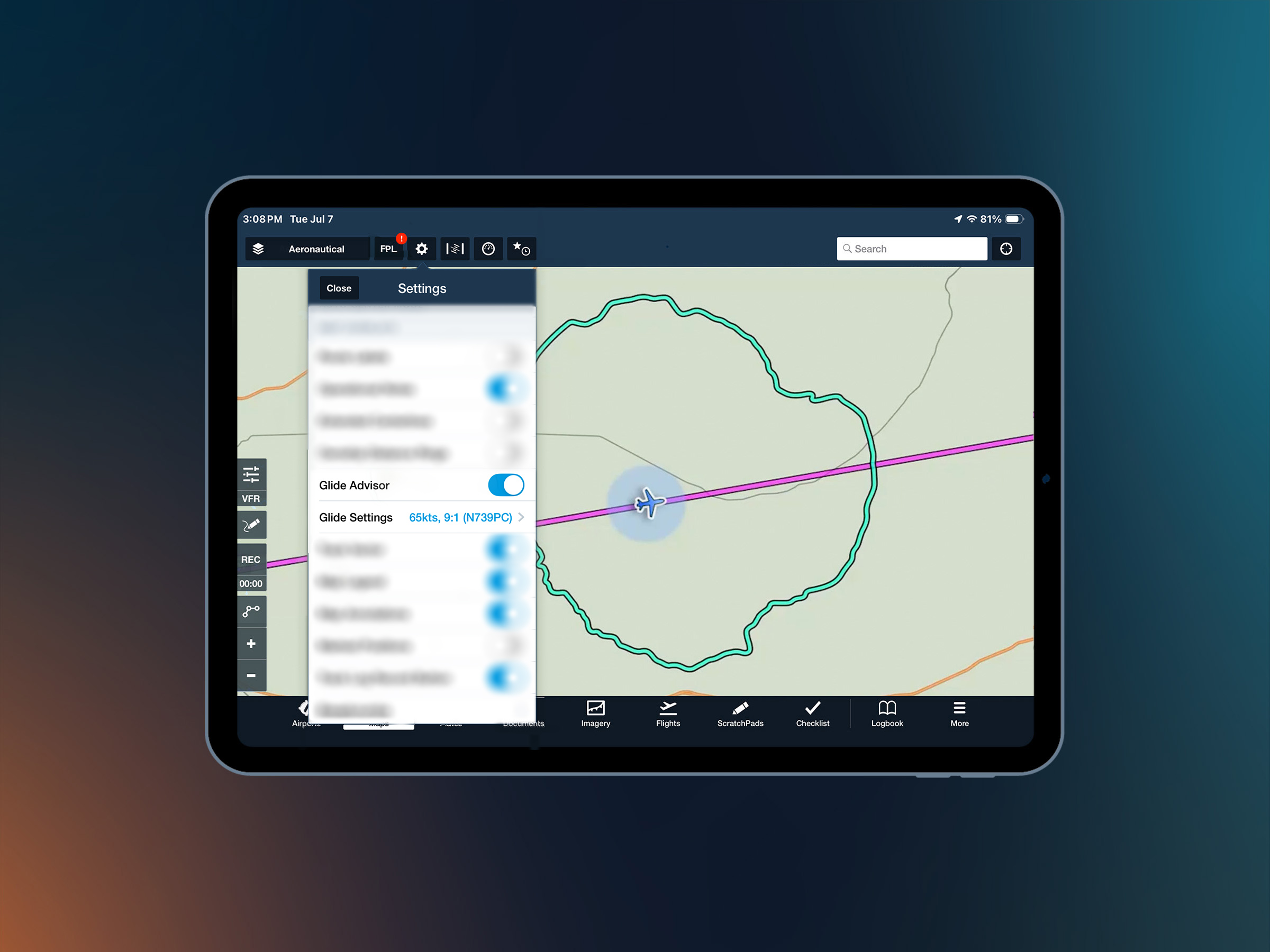
Check your aircraft’s POH when entering best glide speed and ratio. Also, I would suggest that you be conservative and use a slightly worse ratio to account for altitude loss in the initial turn toward the field.
Setup the Aeronautical Map
ForeFlight’s Aeronautical Map overlays aviation-specific graphics directly on the moving map, including the published Fisk Arrival route, visual reporting points, and the holding areas around Oshkosh. This is one of the most valuable tools for flying into AirVenture.
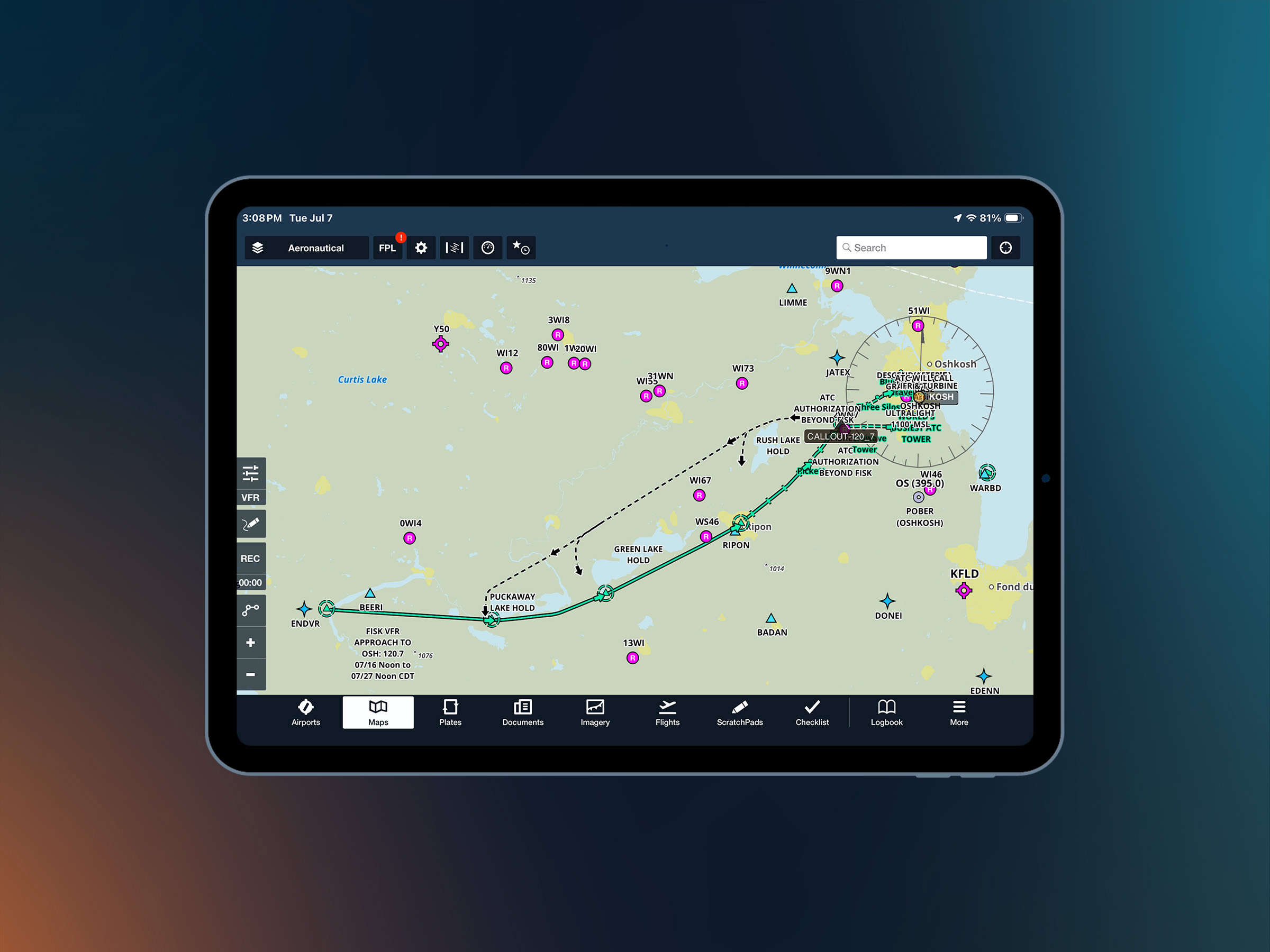
Enabling the Aeronautical Map
- From the Maps view, tap the Layer Selector.
- Make sure the Aeronautical layer is selected.
- Zoom into the Oshkosh/Fisk area.
What you’ll see
ForeFlight depicts the Fisk Arrival ground track as a green line from the Endeavor Bridge Transition to KOSH, complete with all western transition points: Endeavor Bridge, Puckaway Lake, and Green Lake.
The holding area lakes and landmarks called out in the NOTAM, like Green Lake, Rush Lake, and the Ripon water tower, are easy to spot on your map. The color-coded parking areas appear for easy navigation once on the ground.
Prepare your aircraft
Run your weight & balance with camping gear
Camping at Oshkosh means extra weight from tents, sleeping bags, coolers, clothing, and other equipment. It can add up quickly, so be sure to include all your gear when calculating weight and balance in ForeFlight.
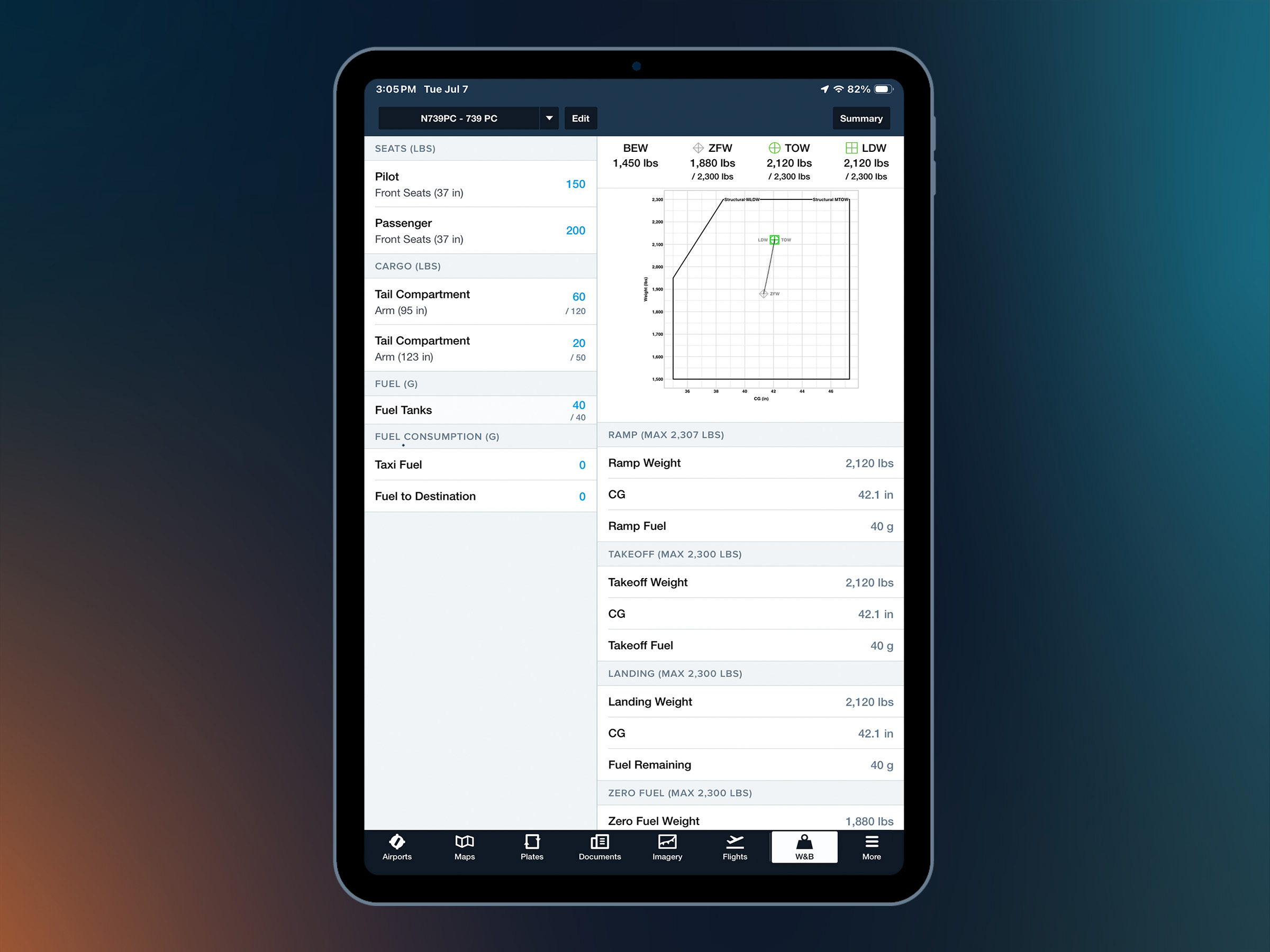
Setting up your aircraft profile
- Go to More > Aircraft and select your aircraft profile (or create one).
- Open your Weight & Balance profile.
- Verify the aircraft’s empty weight, moment, and CG envelope are correct (cross-check with your aircraft's current weight and balance document).
- Confirm your seat, fuel, and baggage stations are configured correctly.
Adding your camping gear
Enter passenger weights, fuel, and baggage into your Weight & Balance profile. If you’re unsure how much your camping gear weighs, weigh it before loading the aircraft rather than estimating.
Verify that the aircraft remains within its weight and CG limits for your planned departure and landing conditions.
If the numbers don’t work, adjust your fuel, baggage, or loading plan before departure.
Set up your preflight checklist
ForeFlight Checklists let you keep aircraft procedures organized and easily accessible. Start with an available aircraft template or create a custom checklist tailored to your aircraft.
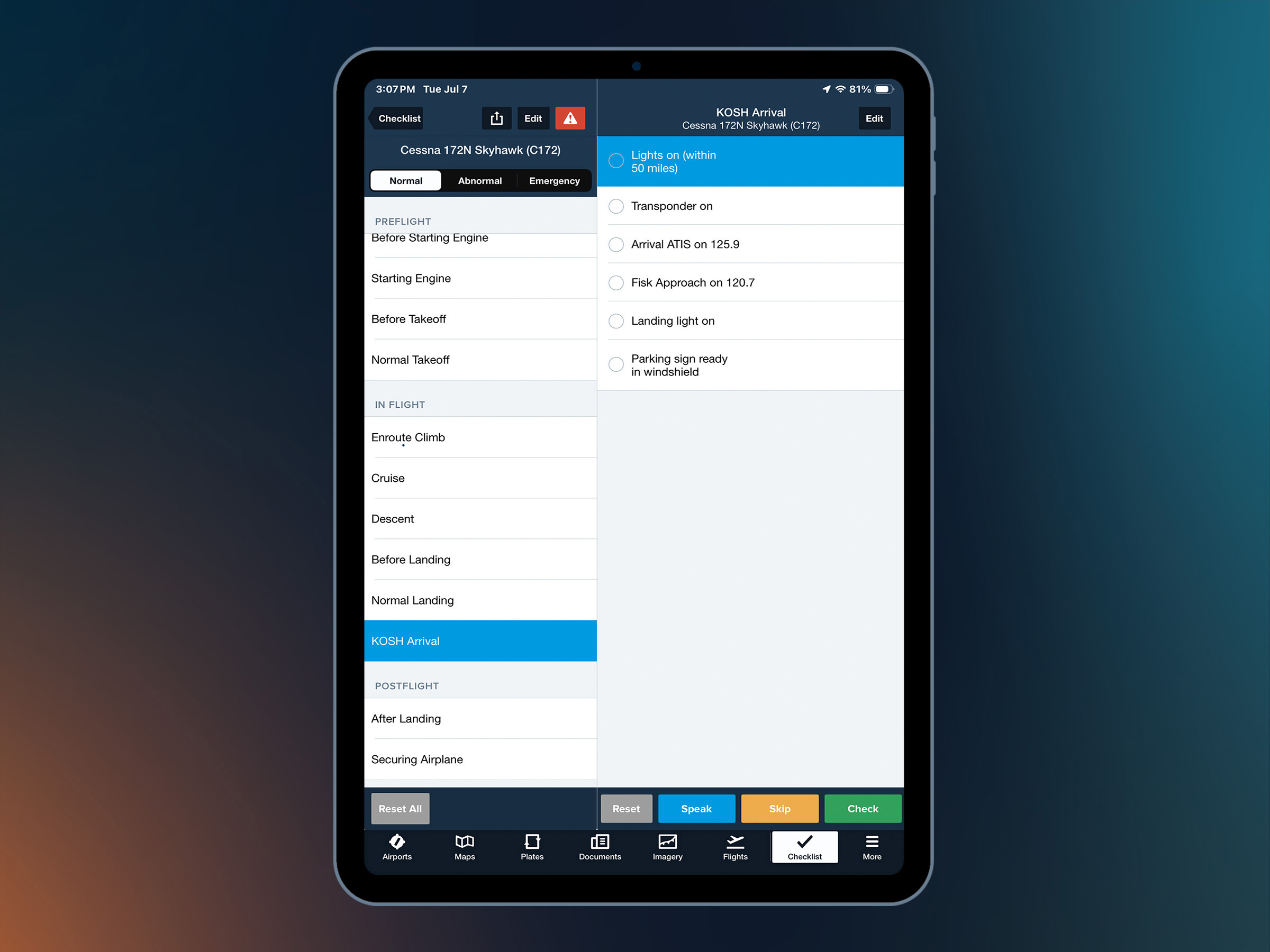
Add or edit a checklist
- Go to More > Checklist.
- Tap the + button to add a checklist set or select an existing one to edit.
- Add the sections and checklist items appropriate for your aircraft.
For the Fisk Arrival, consider adding a dedicated "KOSH Arrival" section with reminders from the published Notice:
- Lights on (within 50 miles)
- Transponder on
- Arrival ATIS on 125.9
- Fisk Approach on 120.7
- Landing light on
- Parking sign ready in the windshield
Plan ahead for the flight
Use Imagery for outlook forecasts

The Imagery tab brings together GFS, NAM, and ECMWF outlook products. These are especially useful for planning a multi-day trip to Oshkosh when you need a 3-7 day look at the weather pattern.
Open Imagery and explore products such as Prog Charts, Model Forecasts, and Graphical Aviation Forecasts. Use the time controls to step through available forecast periods and watch how conditions are expected to develop.
Pay special attention to the cloud charts under Graphical Aviation Forecasts. They shade forecast cloud ceilings across the map, turning your go/no-go decision from a wall of text into a visual snapshot.
Explore how-to videos in the Discover tab
ForeFlight's Discover tab hosts curated video tutorials produced by the ForeFlight team. These short videos walk through specific features across categories like weather, navigation, flight planning, and more. It's a great place to brush up your skills before Oshkosh.

Tap More > Discover and browse by category.
Watch these on the ground at home over Wi-Fi, so you’re not trying to catch up for the first time in the cockpit.
Final thoughts
AirVenture is unlike any other flying you'll do all year. The arrival brings thousands of aircraft into Oshkosh, and preparation makes all the difference.
Do the prep work at home on a reliable internet connection. Download your charts and data, read the NOTAM cover to cover, set your annotations, and verify your weight and balance with that extra gear. Then, when it’s time to rock your wings over Fisk and see the runway at Oshkosh for the first time, you'll be glad you did.
See you at KOSH.

.png)