No items found.
Skip to main content
February 2026

Document Viewer Tabs

Open and manage multiple documents at once.

No images available to display.
back
next

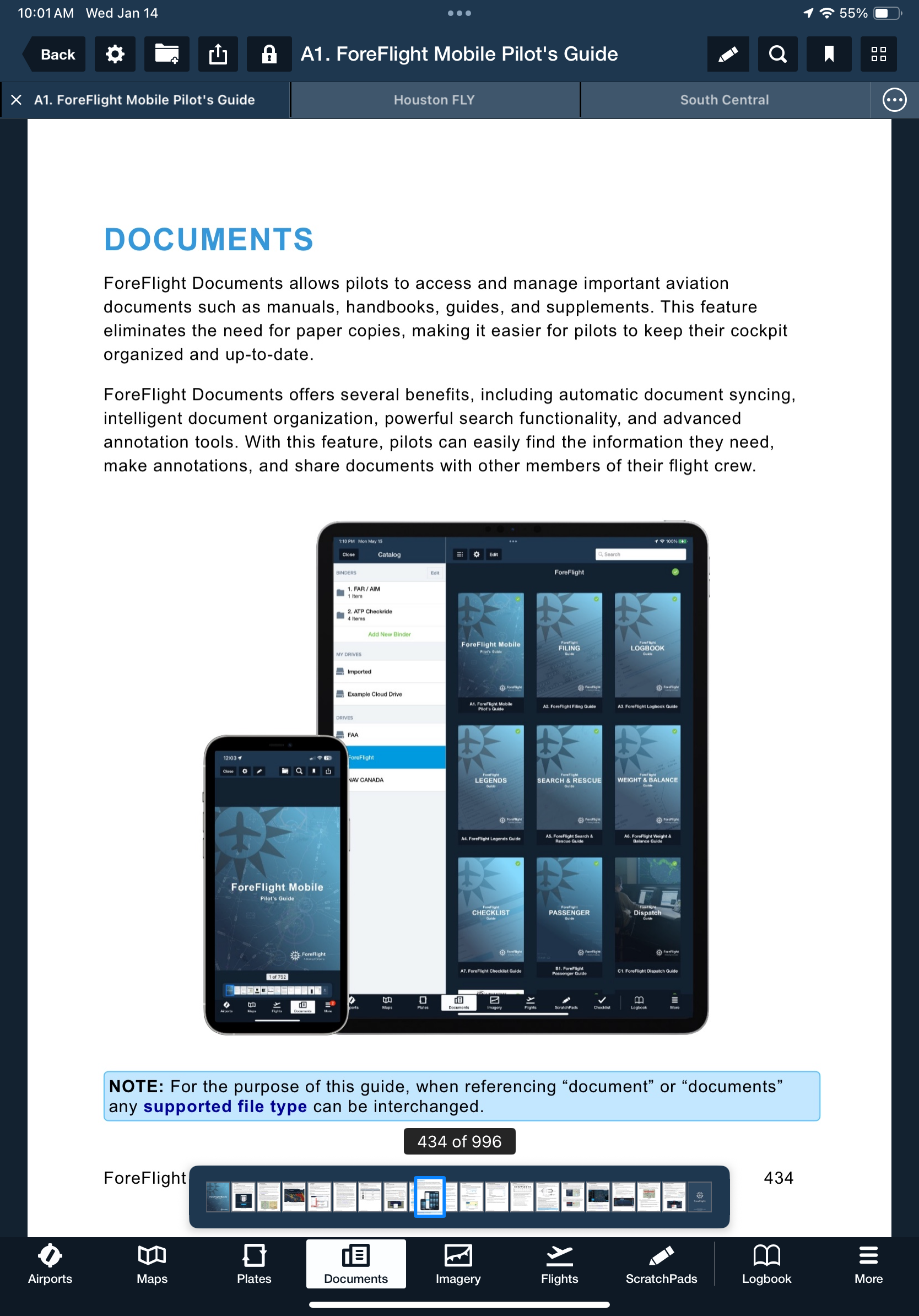
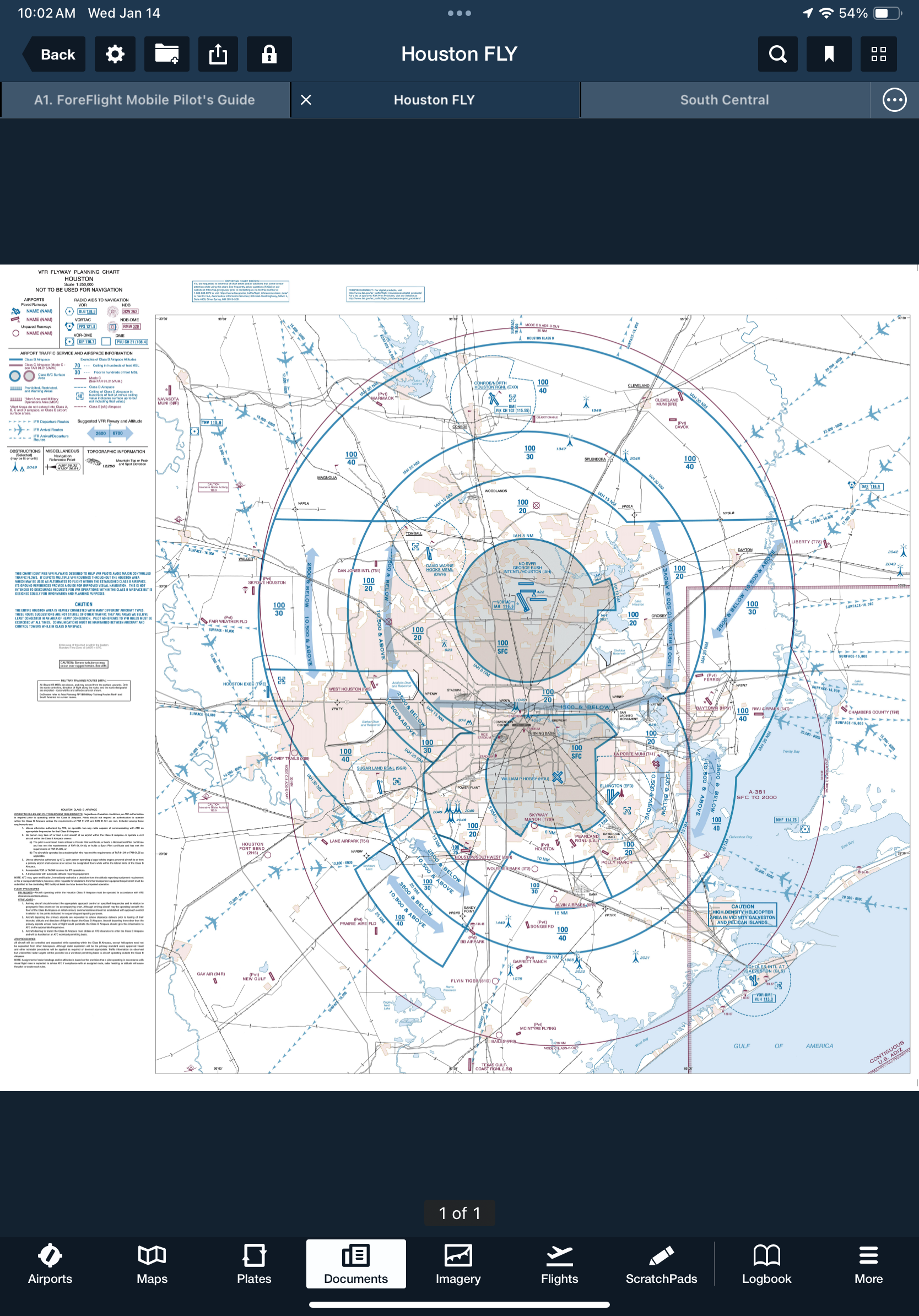
Power complex workflows and keep frequently used files just a tap away with the Documents Tab bar. Opening any document automatically adds it as a new tab along the top of the document viewer, letting you switch between documents or swipe to scroll through tabs on smaller screens. Tap and hold a tab to reorder it or quickly close one, or all, keeping essential charts, manuals, and files organized and ready when you need them.
Release notes

Release notes

  • Keep multiple documents opened at once and quickly move between them via the Documents Tab bar, enabling more complex workflows and ensuring your most frequently-viewed files are just a tap away.
  • Opening any document will automatically open it as a new tab alongside any existing tabs, which appear in a bar along the top of the document viewer. Tap on other tabs to switch between them, and tap the X button on the left side of the current tab to close it.
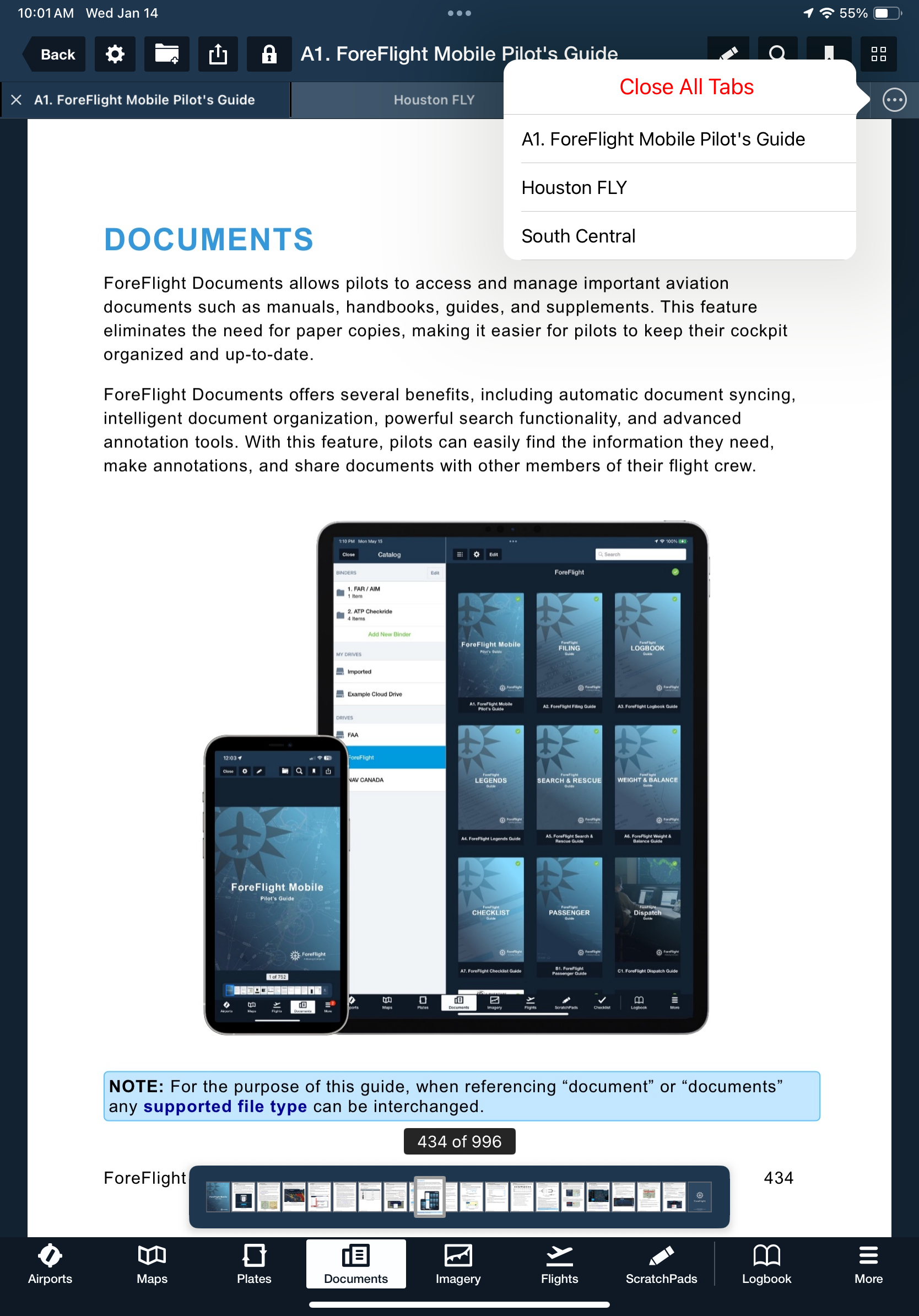
  • Tap-holding on any tab provides options to close that tab, close all tabs other than it, or close all tabs. Tap-hold and then drag a tab to move it within the tab bar.
  • When the number of open tabs exceeds the size of the tab bar, especially on iPhone or when using Multitasking on iPad, you can swipe left or right to scroll through the tab bar and access hidden tabs. Tapping the “…” button at the far-right end of the tab bar also provides a tappable list of all open tabs to quickly jump to any one.

Support

Support

FAQs
Find answers to your questions
Pilot's Guide
The complete ForeFlight handbook
Video Library
ForeFlight videos all in one place
Buying Guide
Choose the right iPad and plan