Skip to main content
18.1
February 2026
ForeFlight 18.1 includes Transcribed ATIS, Alternate Airports on Maps, User Waypoint Styles, and more.
All Plans
Alternate Airports on Maps
Select and route to alternate airports in-flight from the Maps view.
.avif)
Release Notes
Release Notes
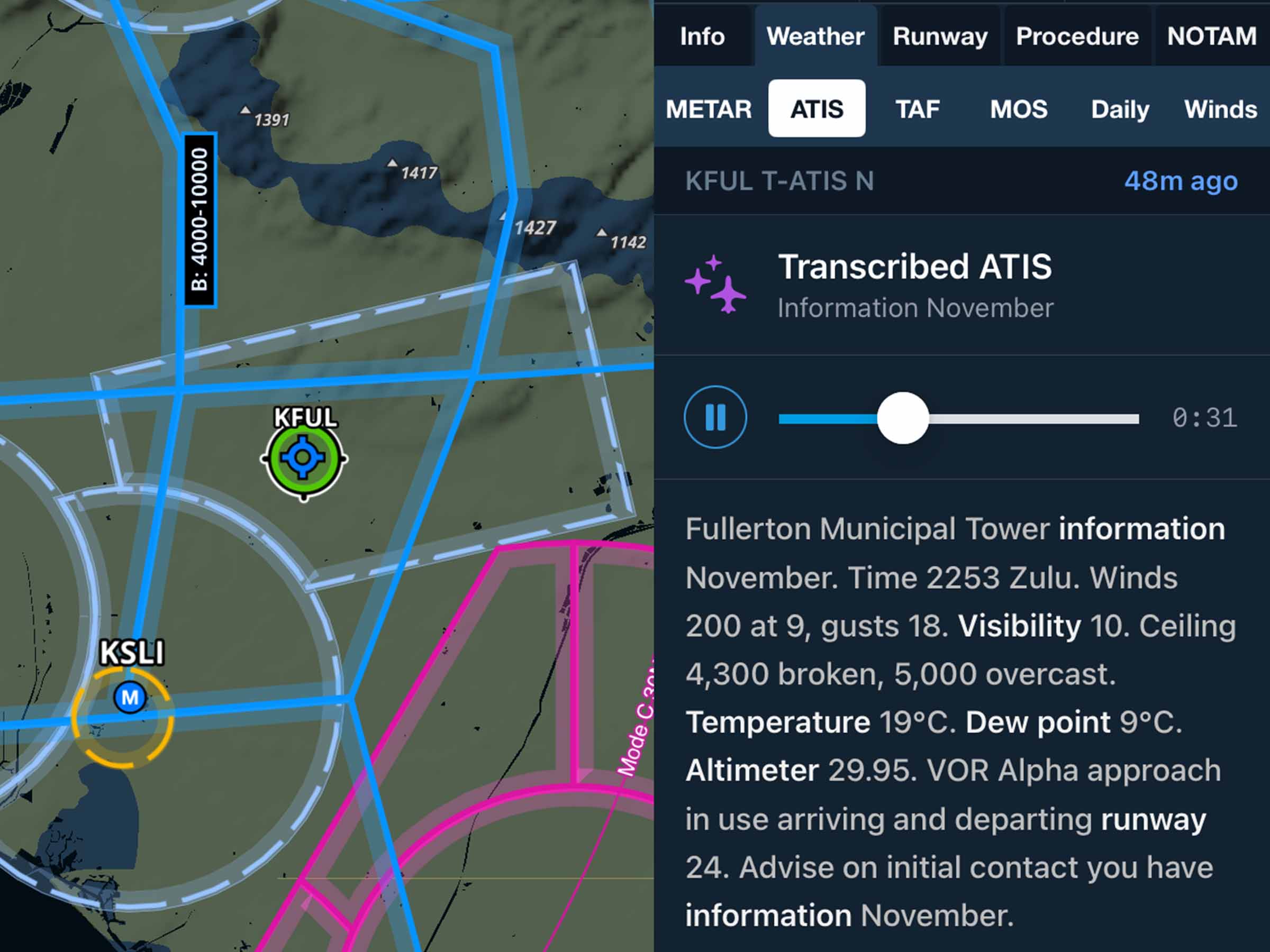
Transcribed ATIS
- Get the latest ATIS at over 80 U.S. airports with AI-powered transcriptions, along with the original audio recording for each.
- When T-ATIS is available for a given airport it appears in Airports > Weather > ATIS with the broadcast’s alphanumeric identifier and the time since the information became effective. Key terms in the transcribed text are bolded to make it easier to scan and retain.
- The original audio recording of the current ATIS is available above the text for direct playback so you can verify the transcription’s accuracy.
- The ATIS frequency and phone number are also available for reference at the bottom of the view.
- T-ATIS is included with ForeFlight Premium and Performance subscription plans.
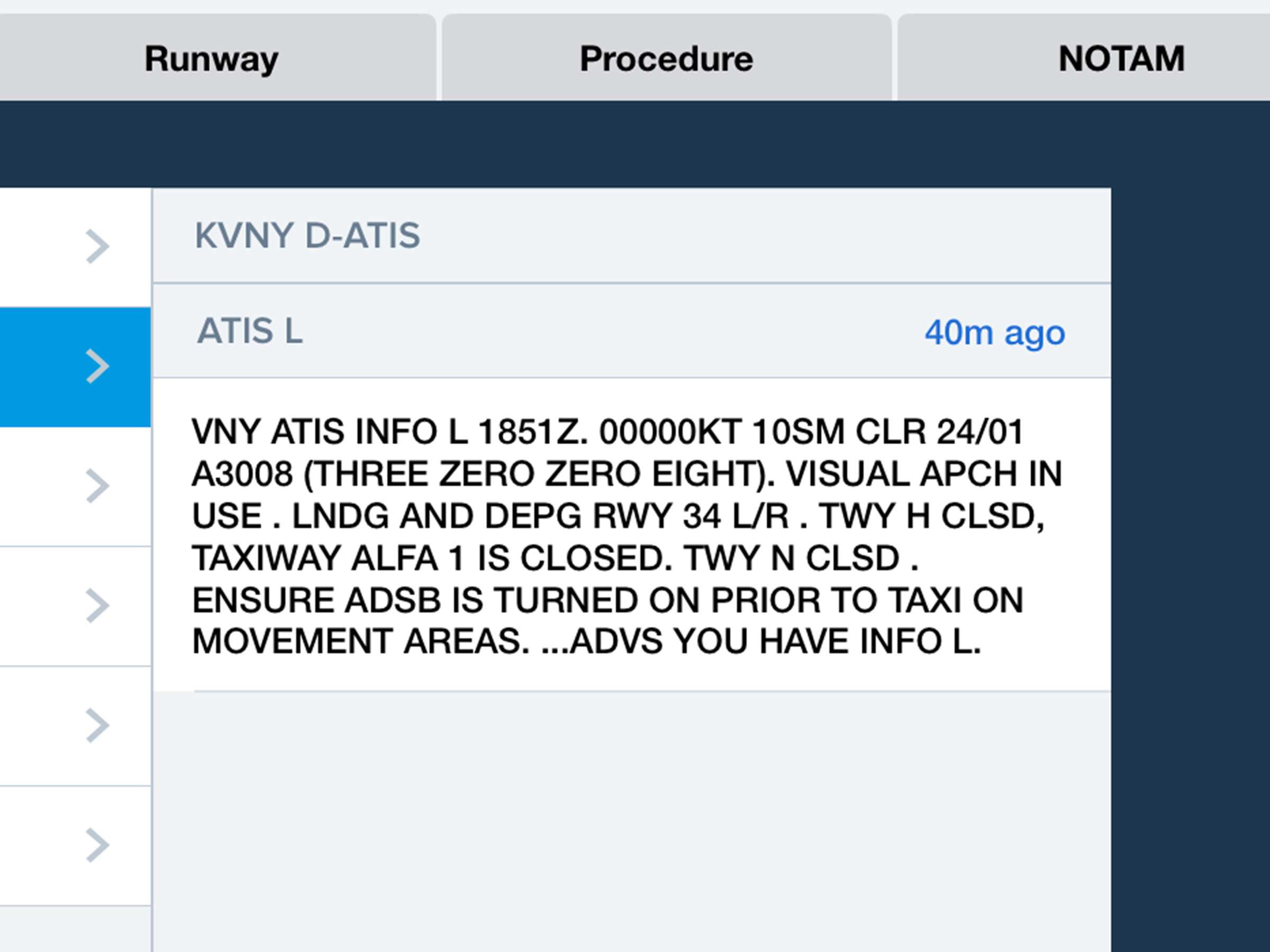
Digital ATIS Available with Essential
- With the release of T-ATIS for Premium customers, the existing Digital ATIS feature is now available for Essential customers, providing automated D-ATIS messages at over 75 major U.S. airports which you can access in Airports > Weather > ATIS.
- A ForeFlight Performance plan is still required for Business and MFB customers to access D-ATIS.
Alternate Airports on Maps
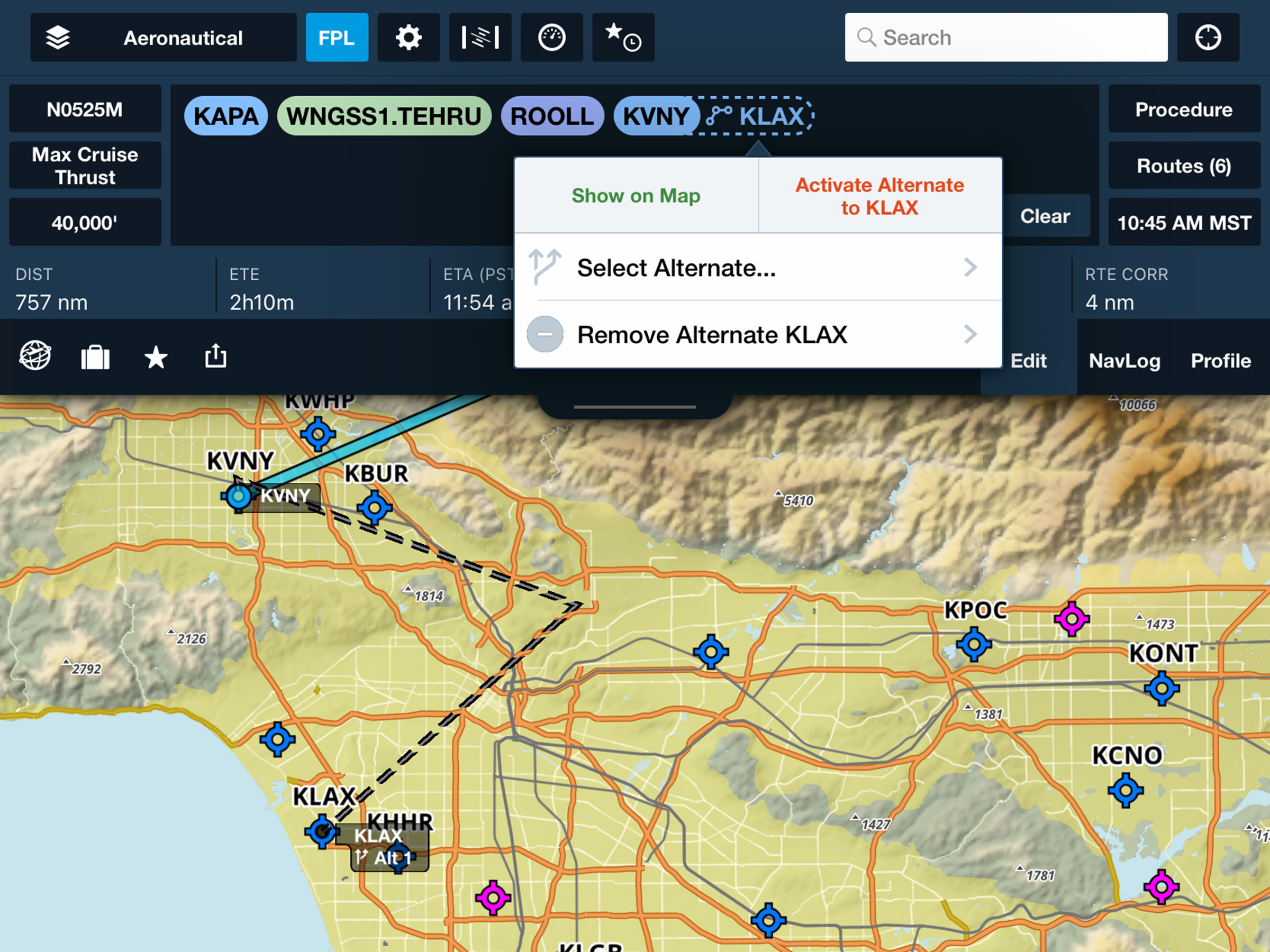
- Extend your alternate planning workflow to the Maps view with support for selecting and routing to alternate airports.
- Add alternates to your flight plan in a few ways: from the action list invoked by tapping an airport’s bubble in the FPL editor or tapping it directly on the map and tapping “More >”, via Procedure Advisor, or by sending a route containing alternates from Flights to Maps. After selecting an alternate you can also specify a route, altitude, and cruise performance profile from the airport to the alternate (requires an Essential/Pro subscription plan or above).
- Once added, alternates appear in the FPL Editor connected to their associated airport, and a dashed line on the map connects them on the map, either directly or via the specified route.
- Tap the alternate bubble in the FPL Editor to remove it, select a different alternate, or activate your route to the alternate.
User Waypoint Styles
- Customize the shape and color of your saved user waypoints created in ForeFlight or imported via CSV or Content Packs to unlock greater flexibility and new use cases.
- When saving a point as a new User Waypoint or editing an existing one, tap the Waypoint Style field to select from six colors and six icon styles.
Document Viewer Tabs
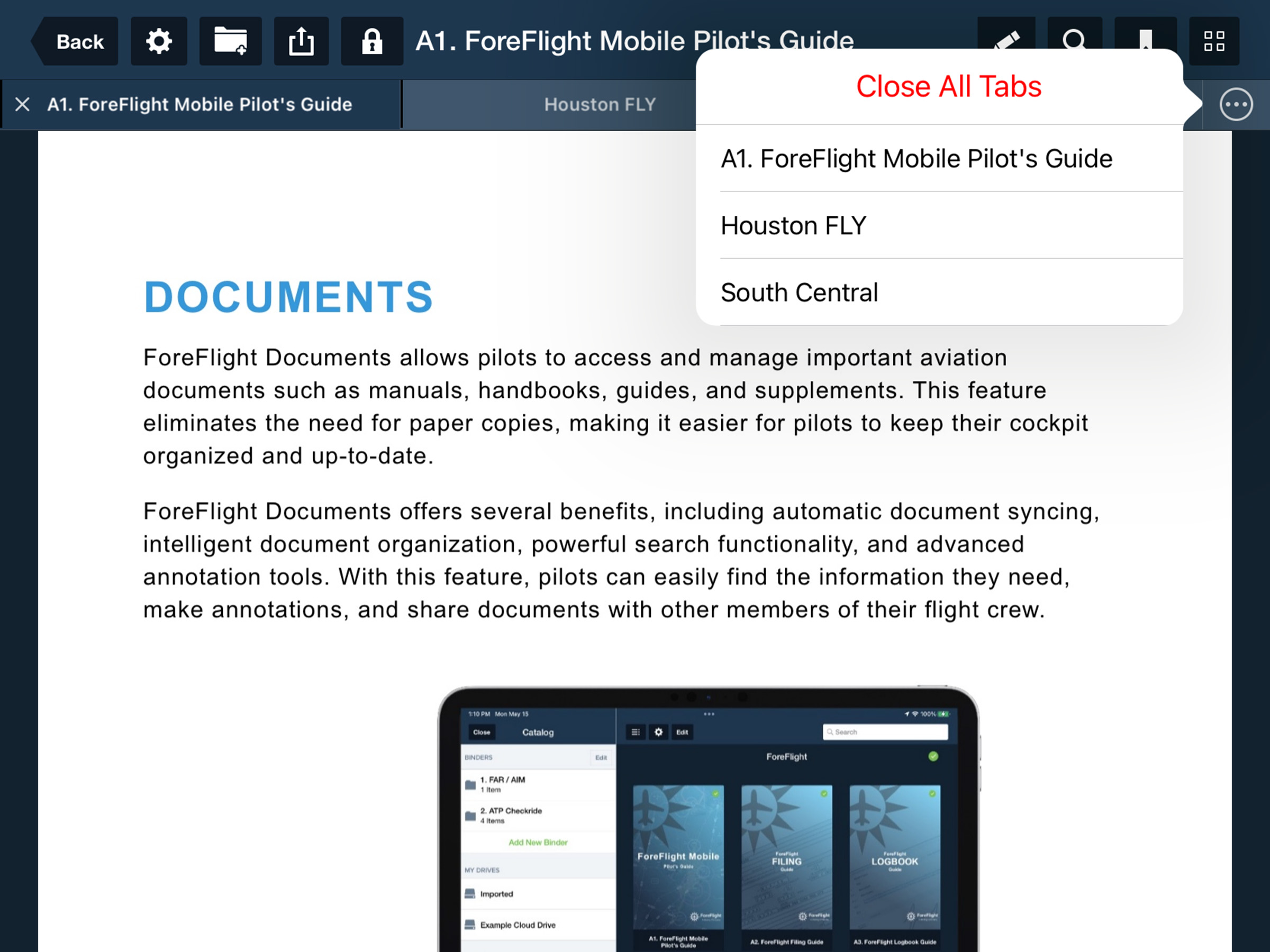
- Keep multiple documents opened at once and quickly move between them via the Documents Tab bar, enabling more complex workflows and ensuring your most frequently-viewed files are just a tap away.
- Opening any document will automatically open it as a new tab alongside any existing tabs, which appear in a bar along the top of the document viewer. Tap on other tabs to switch between them, and tap the X button on the left side of the current tab to close it.
- Tap-holding on any tab provides options to close that tab, close all tabs other than it, or close all tabs. Tap-hold and then drag a tab to move it within the tab bar.
- When the number of open tabs exceeds the size of the tab bar, especially on iPhone or when using Multitasking on iPad, you can swipe left or right to scroll through the tab bar and access hidden tabs. Tapping the “…” button at the far-right end of the tab bar also provides a tappable list of all open tabs to quickly jump to any one.
Upvote Airport & FBO Comments
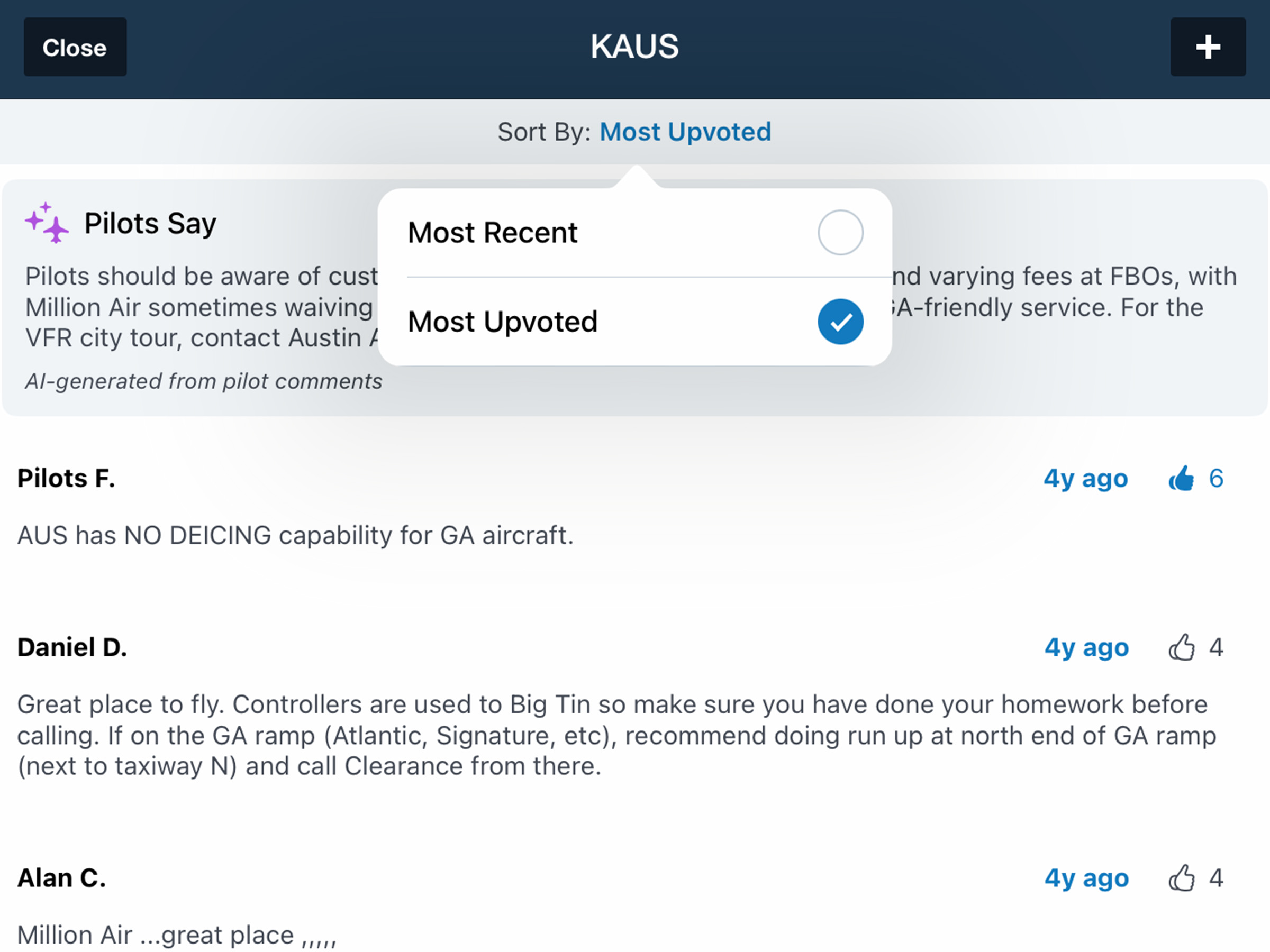
- User-submitted comments for airports and FBOs now include a “thumbs-up” button, allowing you to upvote helpful comments and see which ones others have liked.
- A new option at the top of the Comments view also allows you to sort comments by either Most Recent (default) or Most Upvoted to see them in whichever order you prefer.