Emergency Glide Mode: TrueGlide
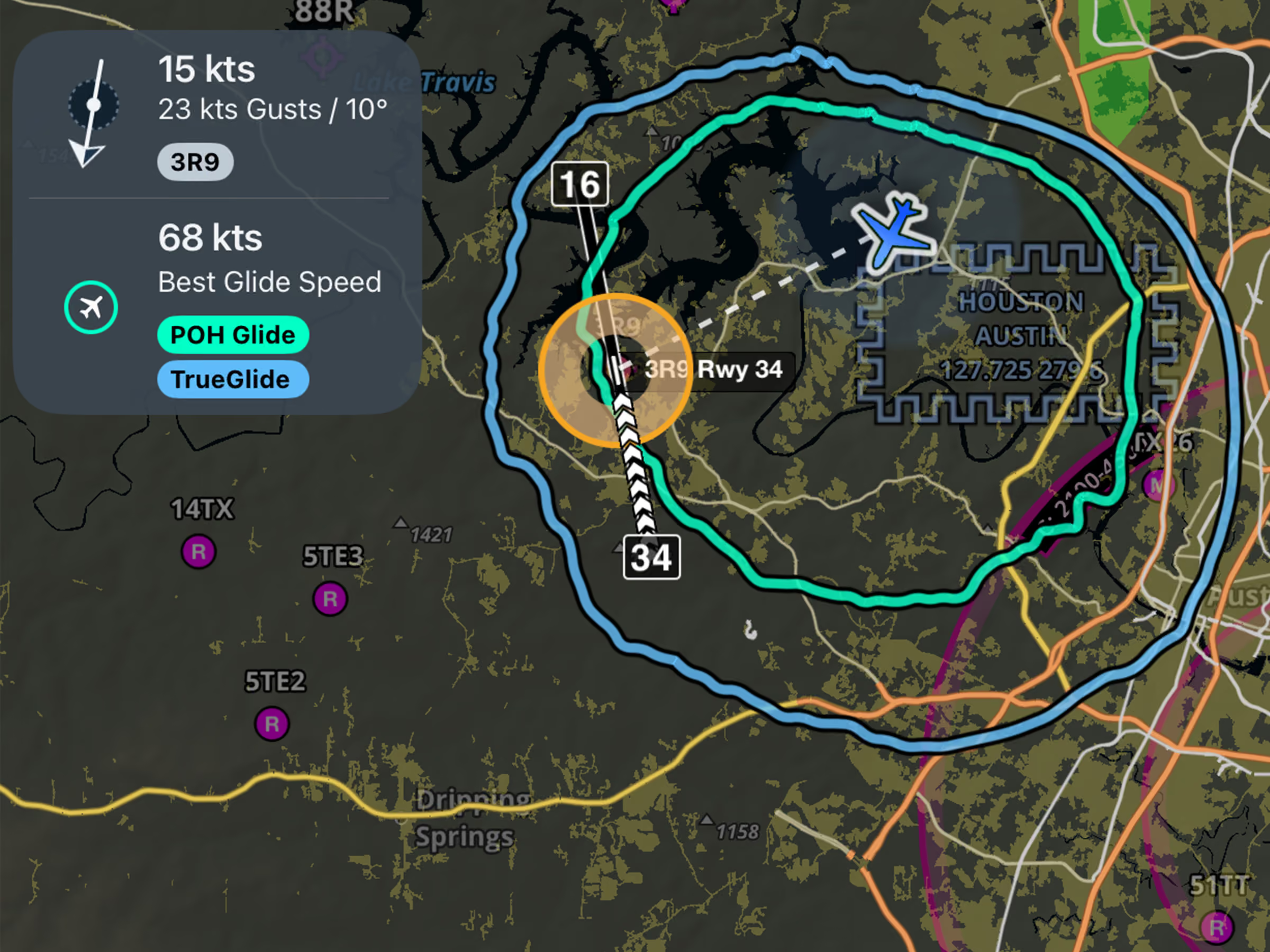
- Get a more realistic picture of your glide range based on your actual glide performance and wind speeds during emergency scenarios.
- TrueGlide appears automatically in Emergency Glide Mode as a blue ring when ForeFlight detects a stable descent rate, alongside the existing green ring that calculates your glide range based on the glide ratio and best glide speed for the selected aircraft.
- You can disable TrueGlide using a new setting in the Map Settings menu which appears when Glide Advisor is enabled.
Enhanced Traffic Icons
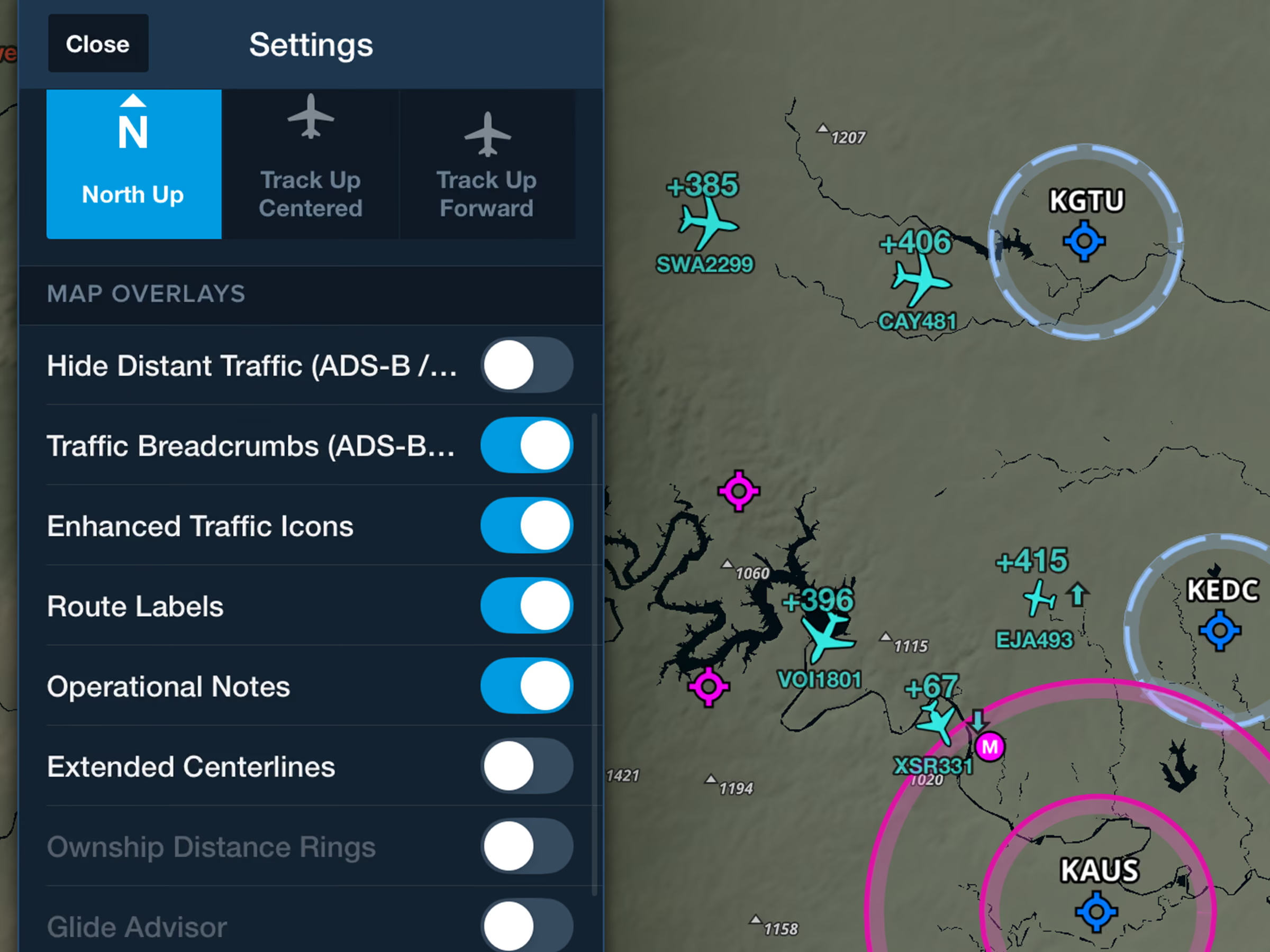
- Change how traffic targets appear in ForeFlight based on their reported aircraft type.
- Enable the Enhanced Traffic Icons toggle in the Map Settings menu while connected to an ADS-B IN or FLARM receiver to replace the generic traffic icon arrow with more realistic icons representing commercial airlines, private jets, single-engine pistons, and other aircraft types, when this information is available.
- This setting is available with ForeFlight Essential subscription plans and above.
New in Dynamic Procedures
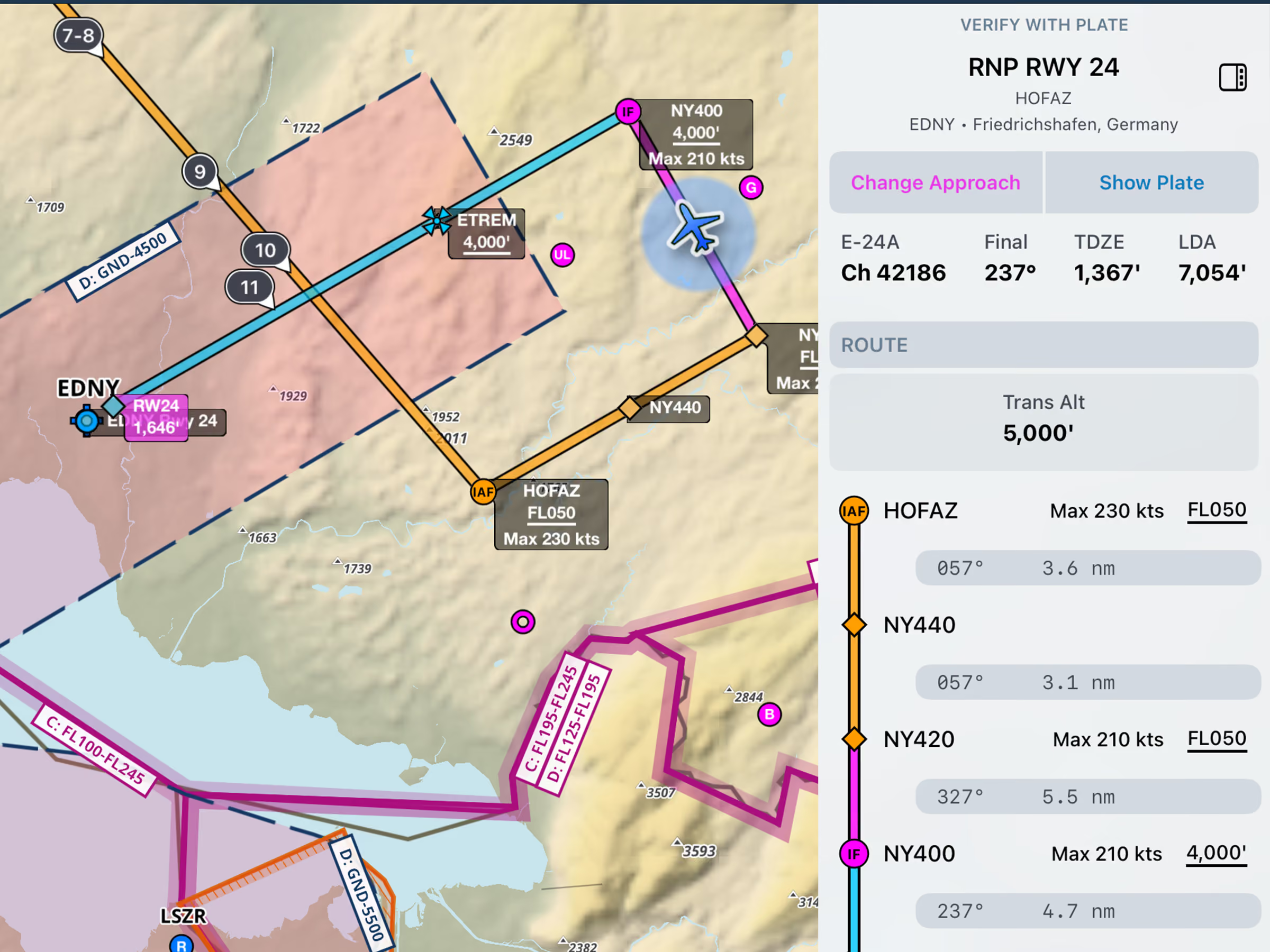
- The Dynamic Procedures sidebar now shows a runway’s published LDA or total length, as well as the airport’s transition altitude or level at the top of the route section.
- Dynamic Procedures is available with ForeFlight Essential plans and above in the US, Canada, and most of Europe.
SMS Safety Event Reporting in ForeFlight Mobile
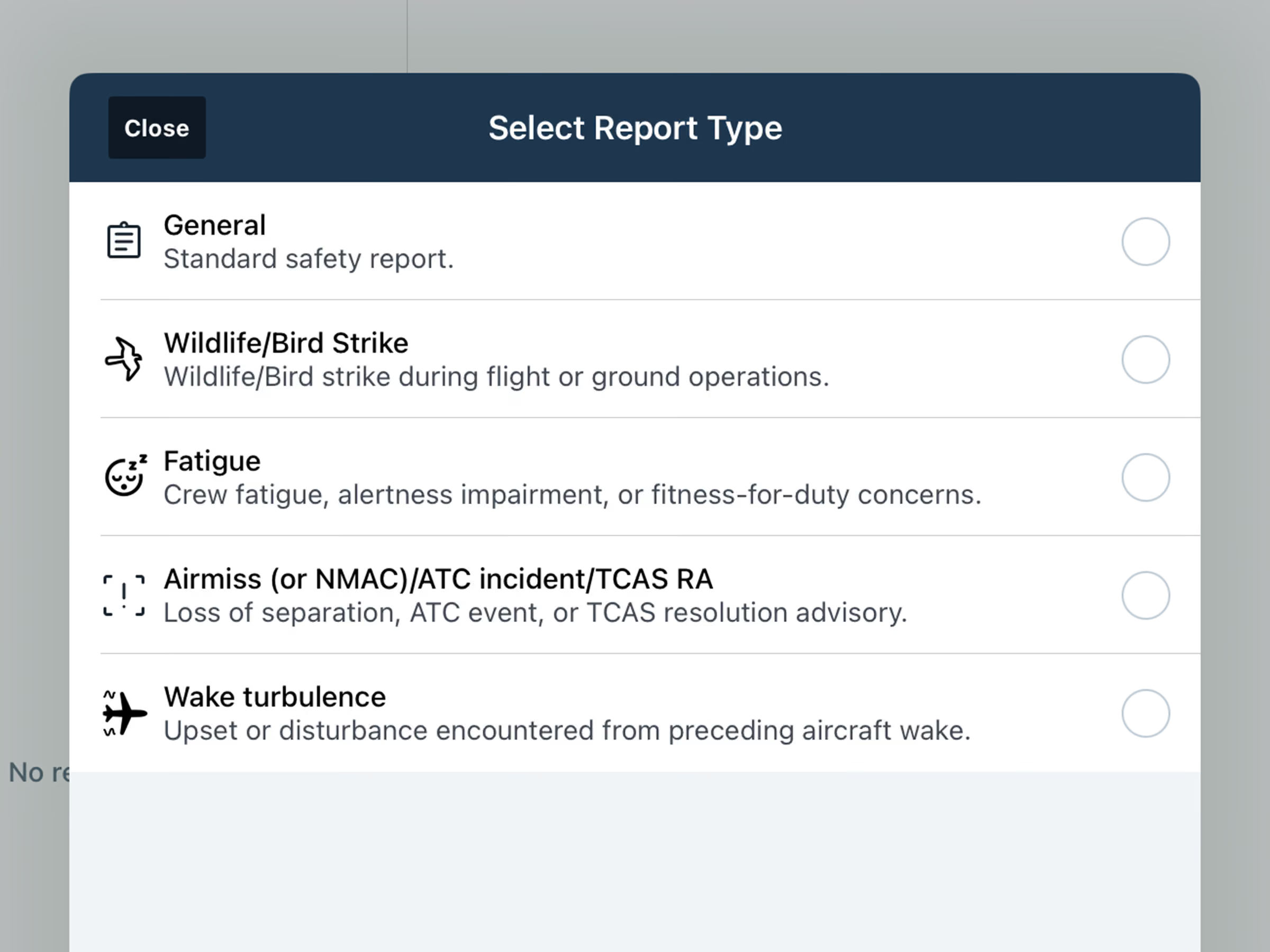
- Submit safety event reports right in ForeFlight Mobile. Select from several report types, work/submit offline, report anonymously, and get a suggested risk level based on the details entered. Receive email confirmations and updates.
- Available reports include general for standard safety reports, or a specialized report for Wildlife/Bird Strike, Fatigue, Airmiss/ATC Incident/TCAS RA, or Wake Turbulence events.
- Included in the SMS add-on for ForeFlight Business accounts. Contact sales@jepp.com to learn more.
Alternates on Active Navlog
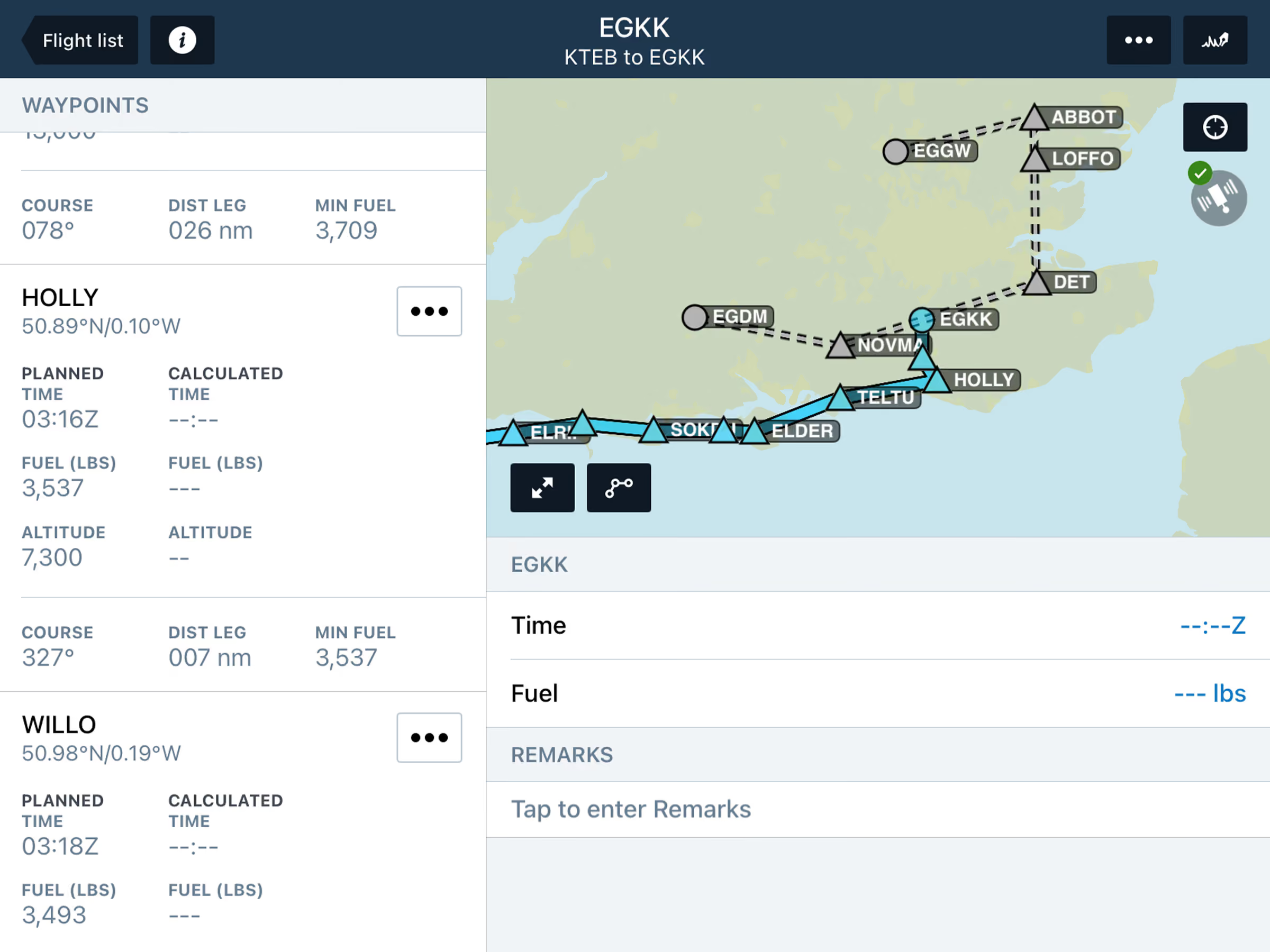
- Keep your planned alternates and their filed routes on hand for the whole flight, so you can divert along the filed route after a missed approach or go direct from wherever you are.
- Alternate airports and their routes appear in gray within the Active Navlog map, and you can divert to an alternate from any waypoint or your present position using the Alternate Destinations option within any waypoint’s Actions menu.
- Available with the Active Navlog add-on for Business and Military accounts.
GPS Interference Map Layer
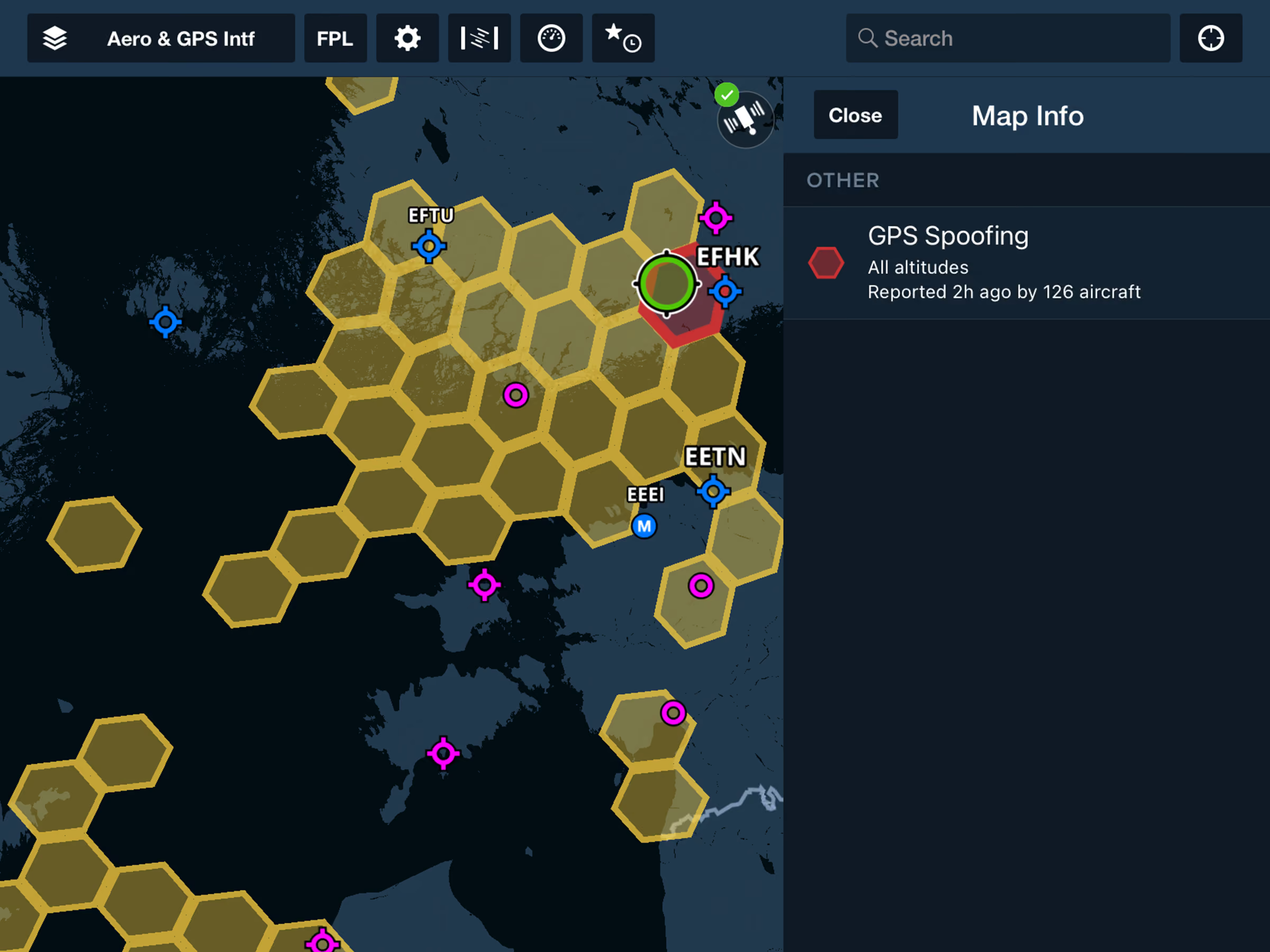
- See where GPS spoofing and interference have been reported recently so you can brief the risk and prepare without leaving ForeFlight.
- Enable the GPS Interference map layer from the right column of the Layer Selector just above the Traffic layer to display reports of GPS interference and spoofing directly on the map as yellow and red hexagons, respectively, and tap on these to see more information such as the age of the report and the affected altitudes.
- Available with ForeFlight Business Performance and MFB One subscription plans.
MFB: Dynamic Corridor Widgets
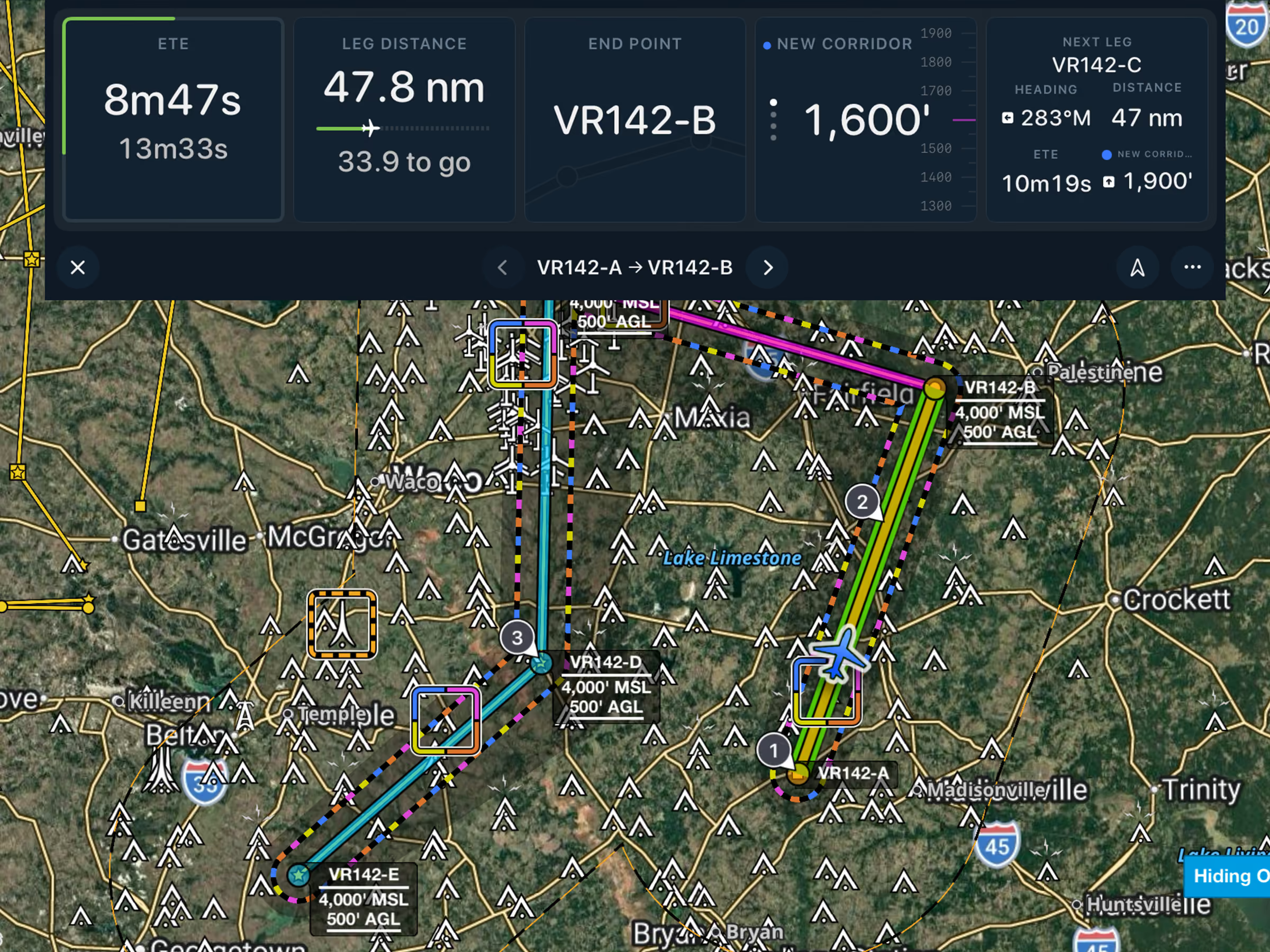
- Monitor the time or distance remaining on each leg of a Low Level Corridor route with new enhanced panel widgets that act as dynamic progress indicators.
- Low Level Corridors are available with MFB One subscription plans.
MFB: Expanded DOD Obstacle Filtering
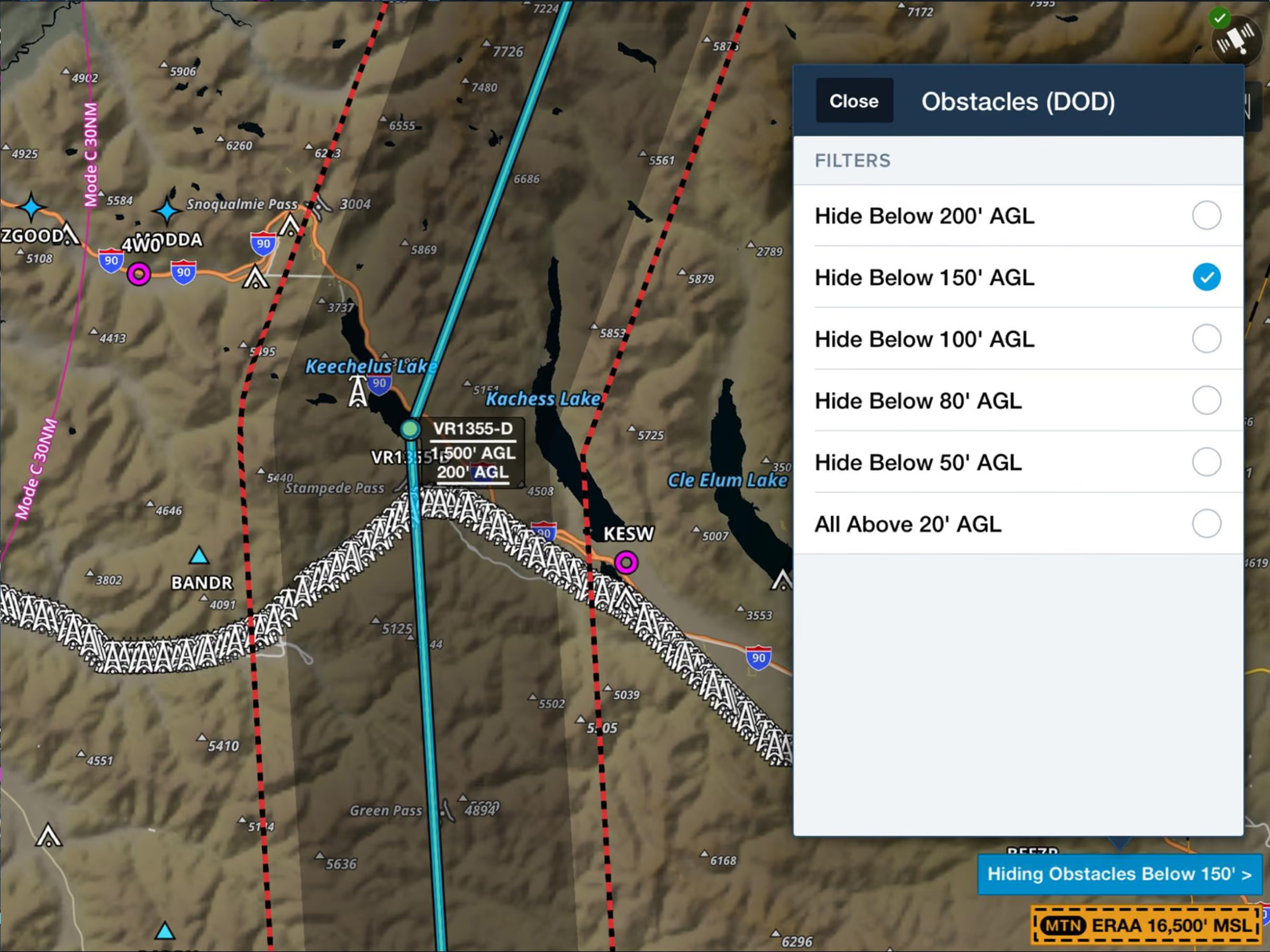
- The DOD Obstacles filter available in the Map Settings menu now applies to obstacles automatically shown while a Low Level Corridor is active, hiding any obstacles lower than the filter’s selected altitude to reduce map clutter.
- DOD Obstacles and Low Level Corridors are available with MFB One subscription plans.