No items found.
Skip to main content
April 2026

Emergency Glide Mode

Identify the safest place to land in the event of engine failure.

No images available to display.
back
next

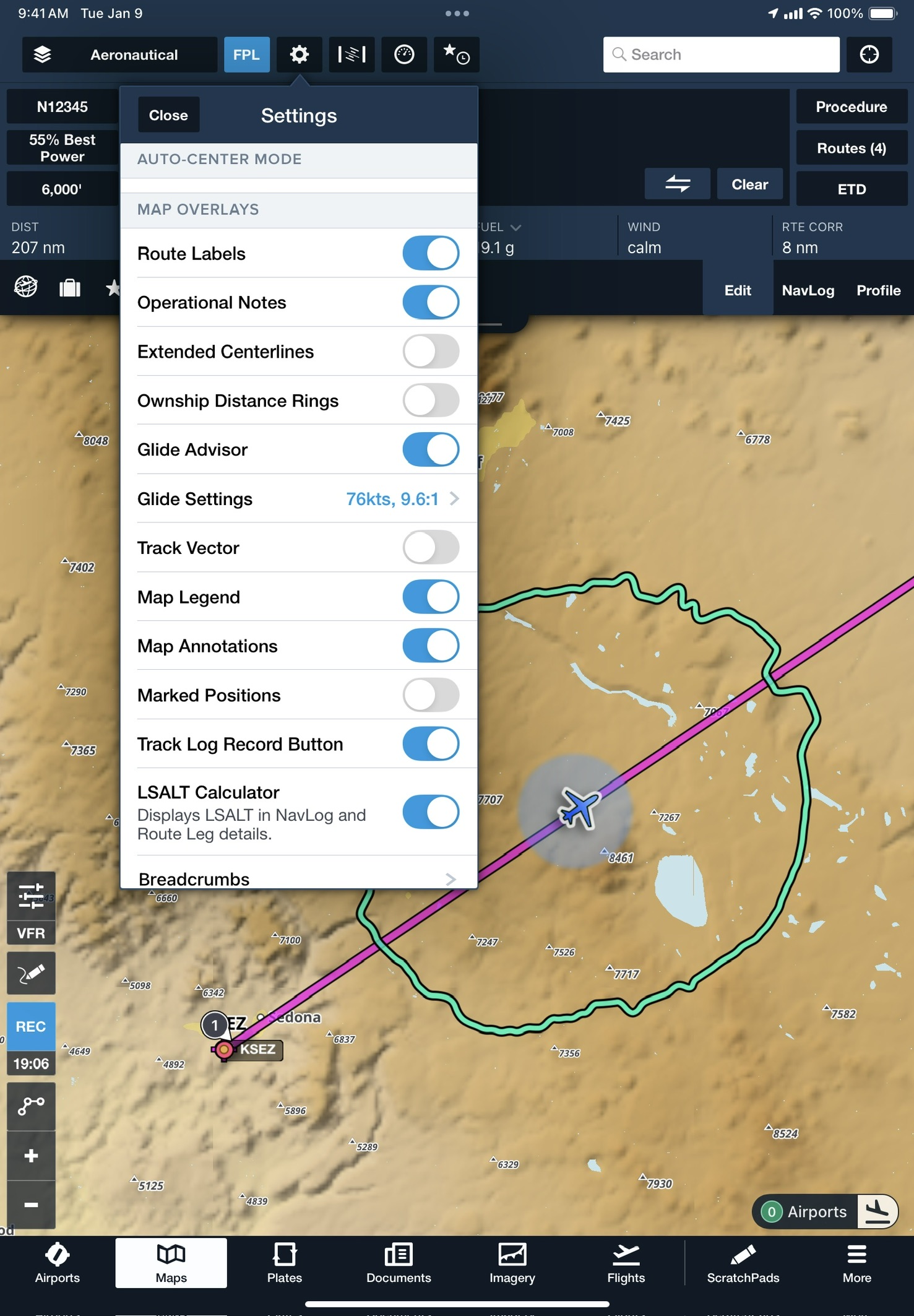
Access inflight support in a distraction-free view that highlights available airports and potential off-airport landing areas. To access Emergency Glide Mode during a flight, enable Glide Advisor in Map Settings > Glide Advisor, and enter your aircraft’s best glide speed and ratio. Then tap the green Airports button in the bottom-right corner to enter Emergency Glide Mode.

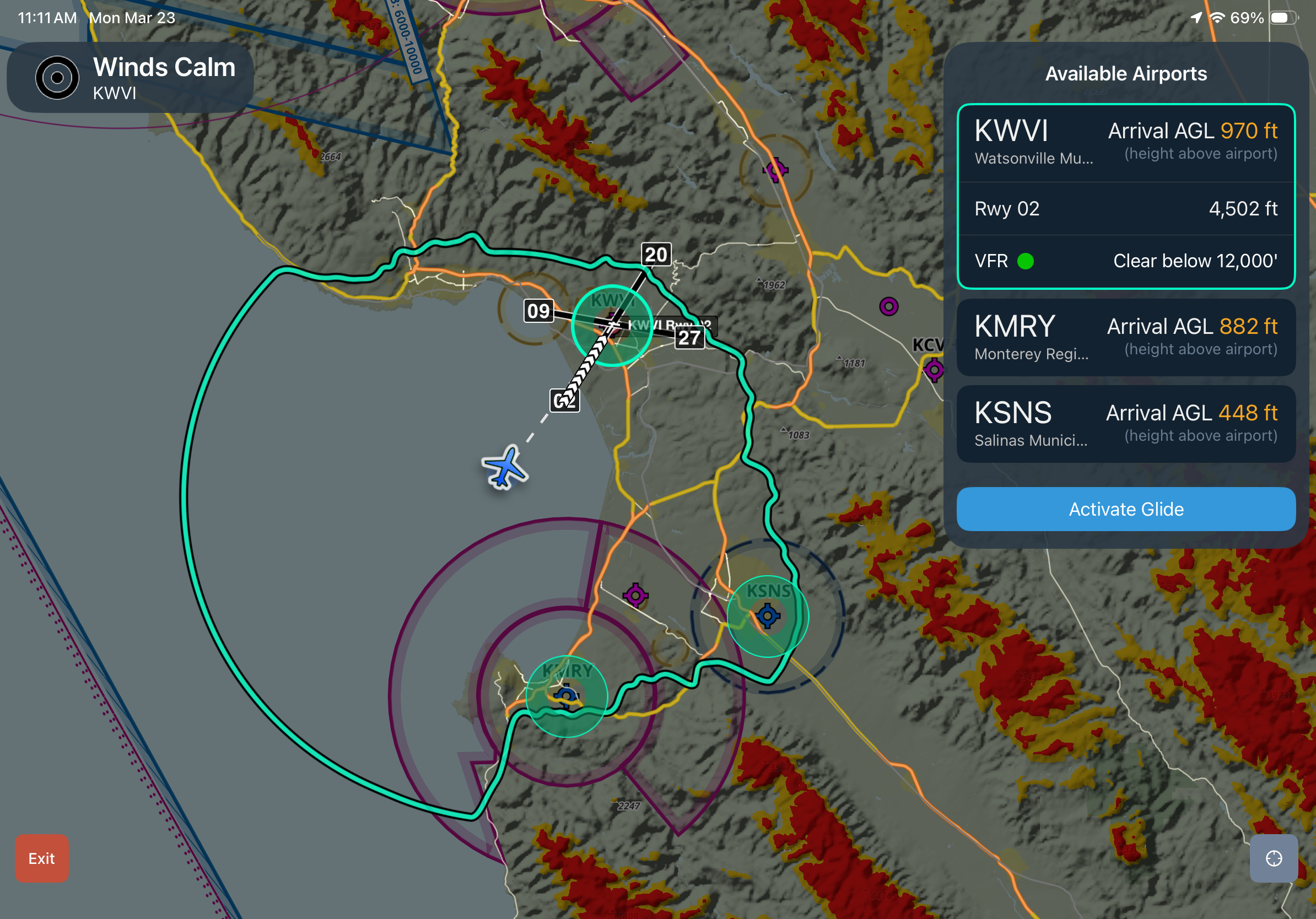
Reachable airports appear in the sidebar and on the Maps view, ranked by distance, runway length, altitude, heading, and winds aloft. Select an airport and tap Activate Glide to create a direct route, along with a display of your ETE, suggested runway, relevant frequencies, winds, and projected AGL on arrival.

If no airports are within glide range, Emergency Glide Mode identifies Possible Landing Areas, or “best bet” landing sites, in shades of green. Obstacles like power lines and roads are highlighted to help direct your scan for a suitable place to land. Possible Landing Areas are built from U.S. Geological Survey data and are available in the contiguous U.S.

At any point, tap the red Exit button in the bottom left corner to return to the standard Maps view.

Release notes

Release notes

  • Quickly identify nearby airports and potential off-airport landing areas in the event of an engine failure when every second counts. 
  • Enable the Glide Advisor map overlay in the Maps Settings menu and configure the best glide speed and ratio for your aircraft to make Emergency Glide Mode available during a flight. 
  • A green button in the bottom-right corner of the Maps view shows the current number of airports within glide range. Tap this button to enter Emergency Glide Mode, which provides a focused and distraction-free view of your landing options.
  • ForeFlight lists promising airports within your glide range in the top right, with information about each airport such as runway length, current weather conditions (if known), and your expected arrival altitude above the airport.
  • Tap Activate Glide to set up a direct route to the selected airport and expose the Maps view Instrument Panel with real-time metrics as you approach the airport.
  • If no airports are within your glide range, Emergency Glide Mode highlights roads and power lines, and identifies Possible Landing Areas directly on the map in green. Built from U.S. Geological Survey data, this virtual map layer helps narrow and direct your scan for “best-bet” landing sites most likely to be suitable for an emergency landing.
  • Emergency Glide Mode is available globally with all ForeFlight plan levels, while the Possible Landing Areas map is available in the lower 48 states of the contiguous U.S.

Support

Support

FAQs
Find answers to your questions
Pilot's Guide
The complete ForeFlight handbook
Video Library
ForeFlight videos all in one place
Buying Guide
Choose the right iPad and plan