
Summer 2026 Launch Spotlight

ForeFlight MFB One

The Ultimate Warfighter’s Toolkit

Explore our new MFB One features below, along with other powerful features that will optimize your crew's operations.

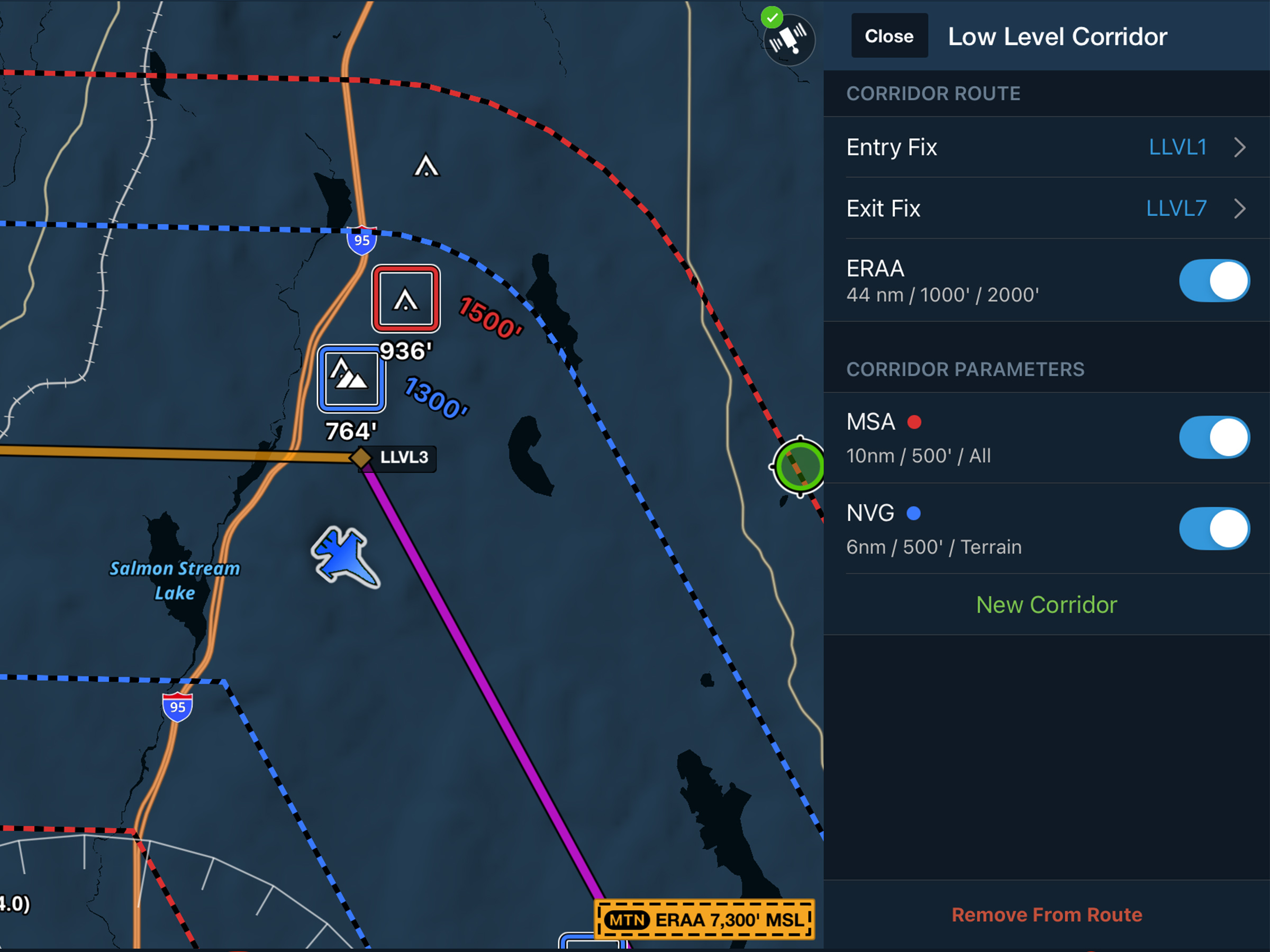
Next-Generation Corridor Planning

Dynamic Corridor Panel

Keep important information in view

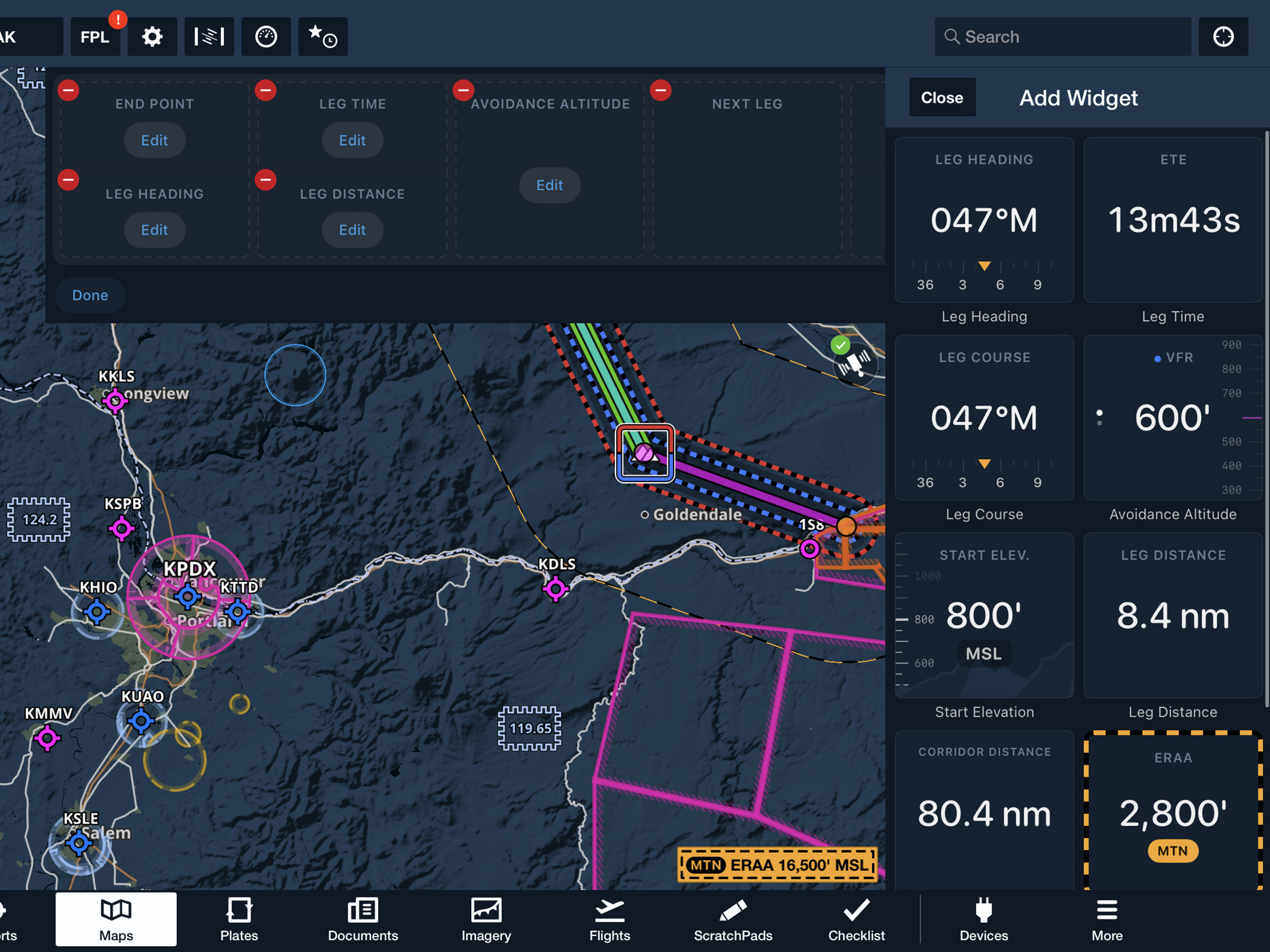
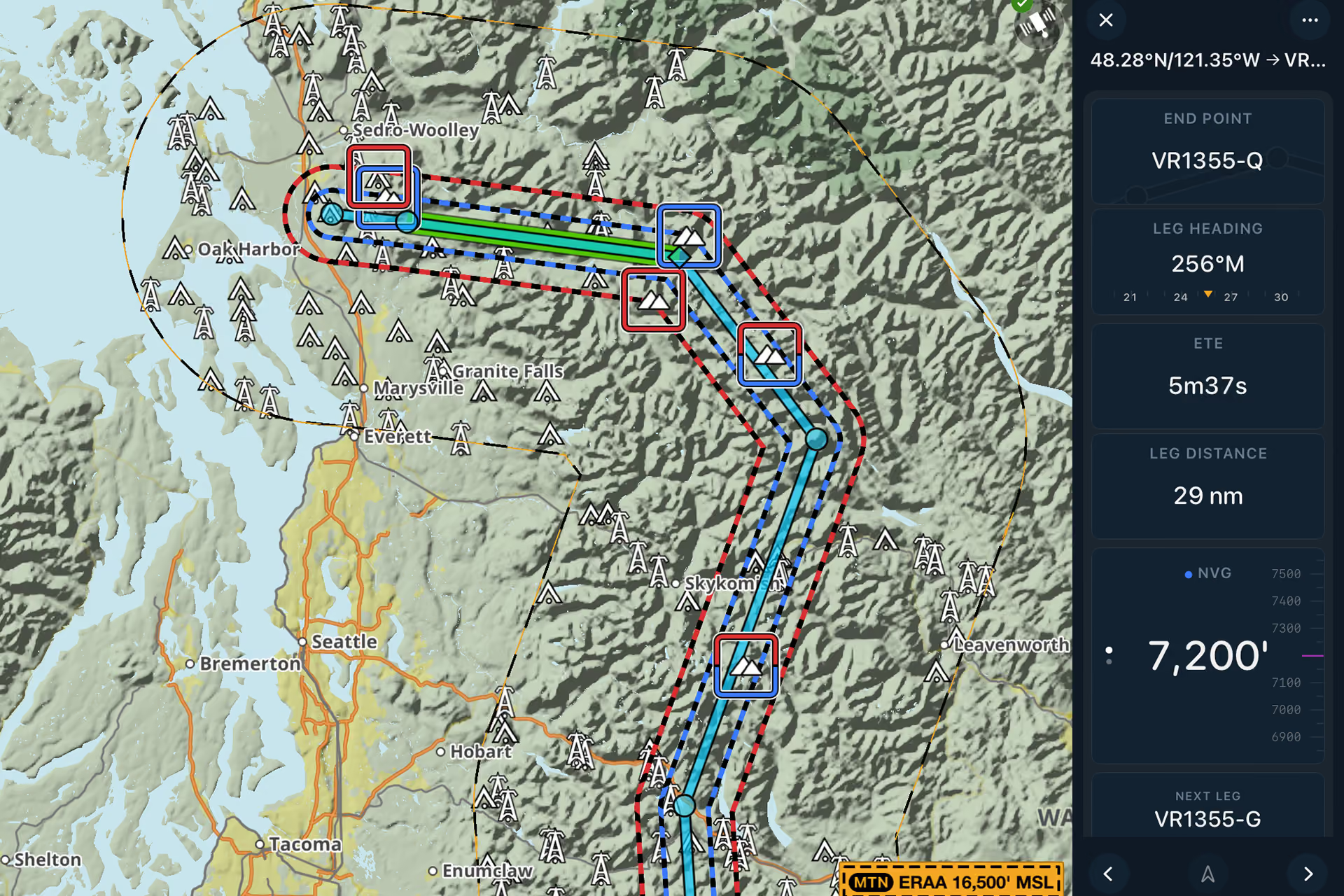
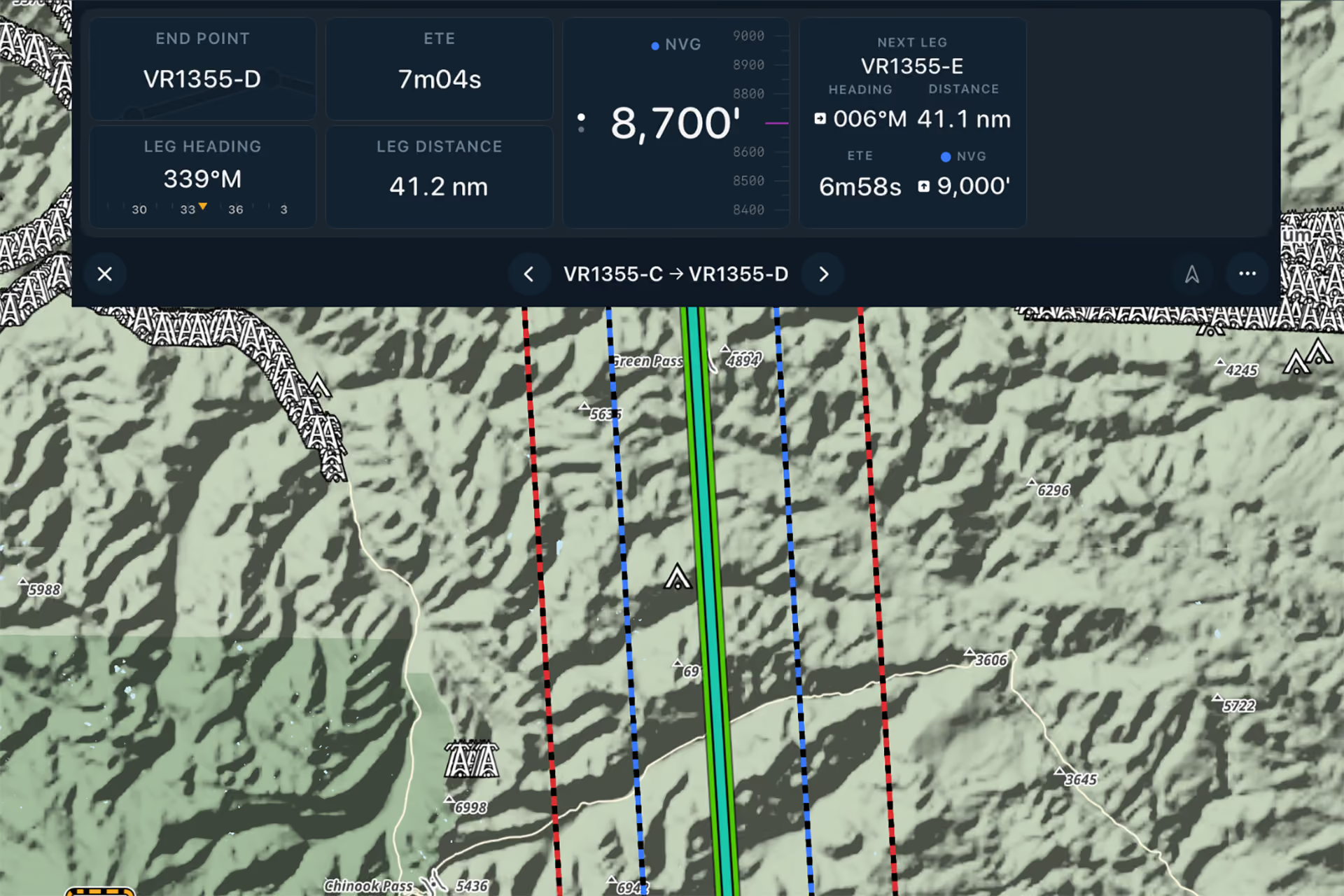
The Dynamic Corridor Panel puts key information about your current low-level leg right on the Maps view, including the end point, heading, ETE, distance, avoidance altitude, and next leg details. This gives you a quick reference during the higher-risk phase of low-level flight.

Briefings made easy

Use the Dynamic Corridor Panel with the Maps view to help brief before low-level operations. The default modules are based on recommended briefing procedures, so the information you need is easy to find.

Simple to use

Once you’ve created a Low Level Corridor, tap the Dynamic Corridor Panel button below the tool bar in the top right corner of the screen. The panel opens on the right side of the Maps view by default.

Customize the panel

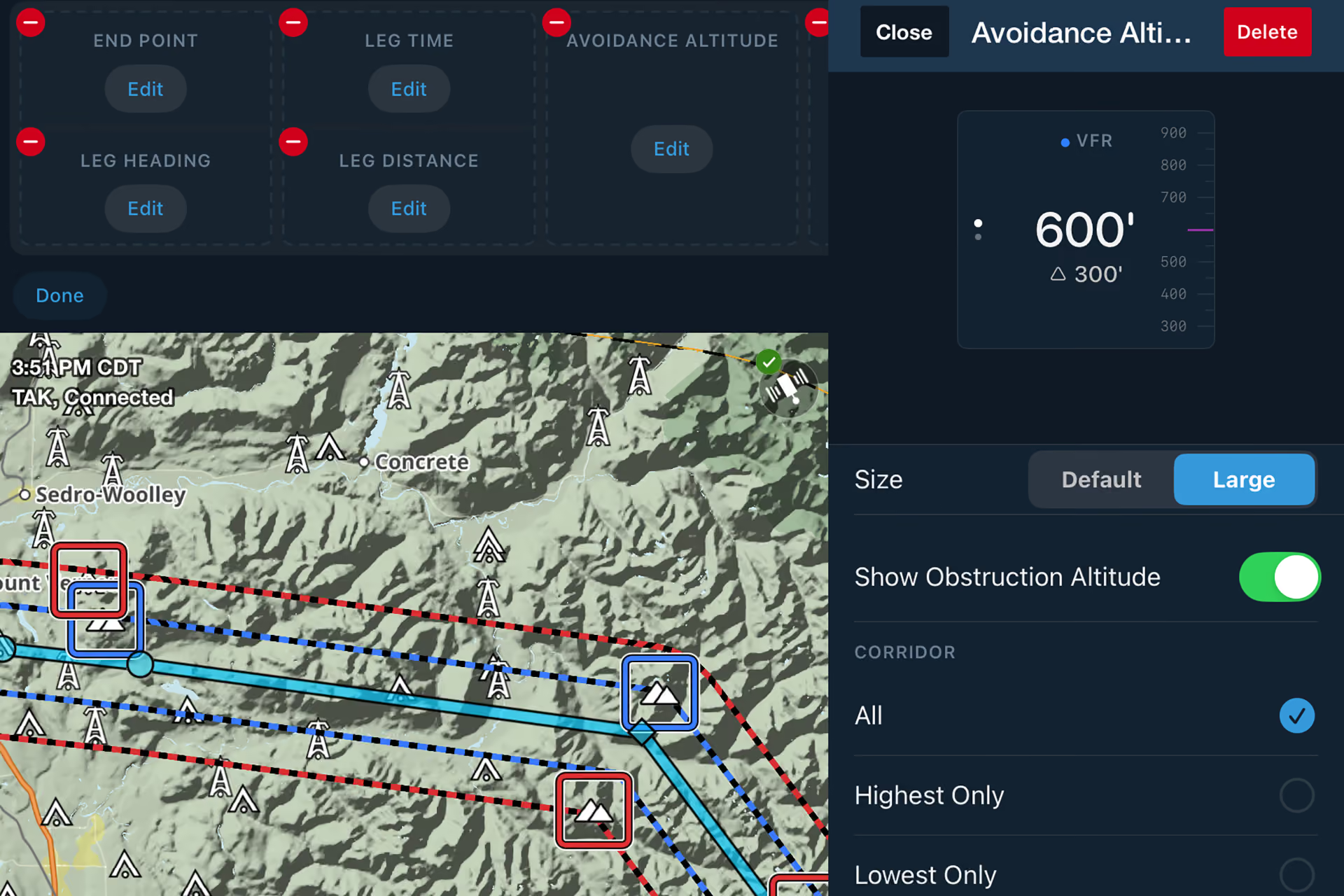
Choose what information appears in the Dynamic Corridor Panel and change its order to match your preferences. You can also quickly toggle the panel’s position between the right side or top of the Maps view by using the selector in the Dynamic Corridor Panel options menu.

Keep important information in view

The Dynamic Corridor Panel puts key information about your current low-level leg right on the Maps view, including the end point, heading, ETE, distance, avoidance altitude, and next leg details. This gives you a quick reference during the higher-risk phase of low-level flight.

Briefings made easy

Use the Dynamic Corridor Panel with the Maps view to help brief before low-level operations. The default modules are based on recommended briefing procedures, so the information you need is easy to find.

Simple to use

Once you’ve created a Low Level Corridor, tap the Dynamic Corridor Panel button below the tool bar in the top right corner of the screen. The panel opens on the right side of the Maps view by default.

Customize the panel

Choose what information appears in the Dynamic Corridor Panel and change its order to match your preferences. You can also quickly toggle the panel’s position between the right side or top of the Maps view by using the selector in the Dynamic Corridor Panel options menu.

See the full mission picture

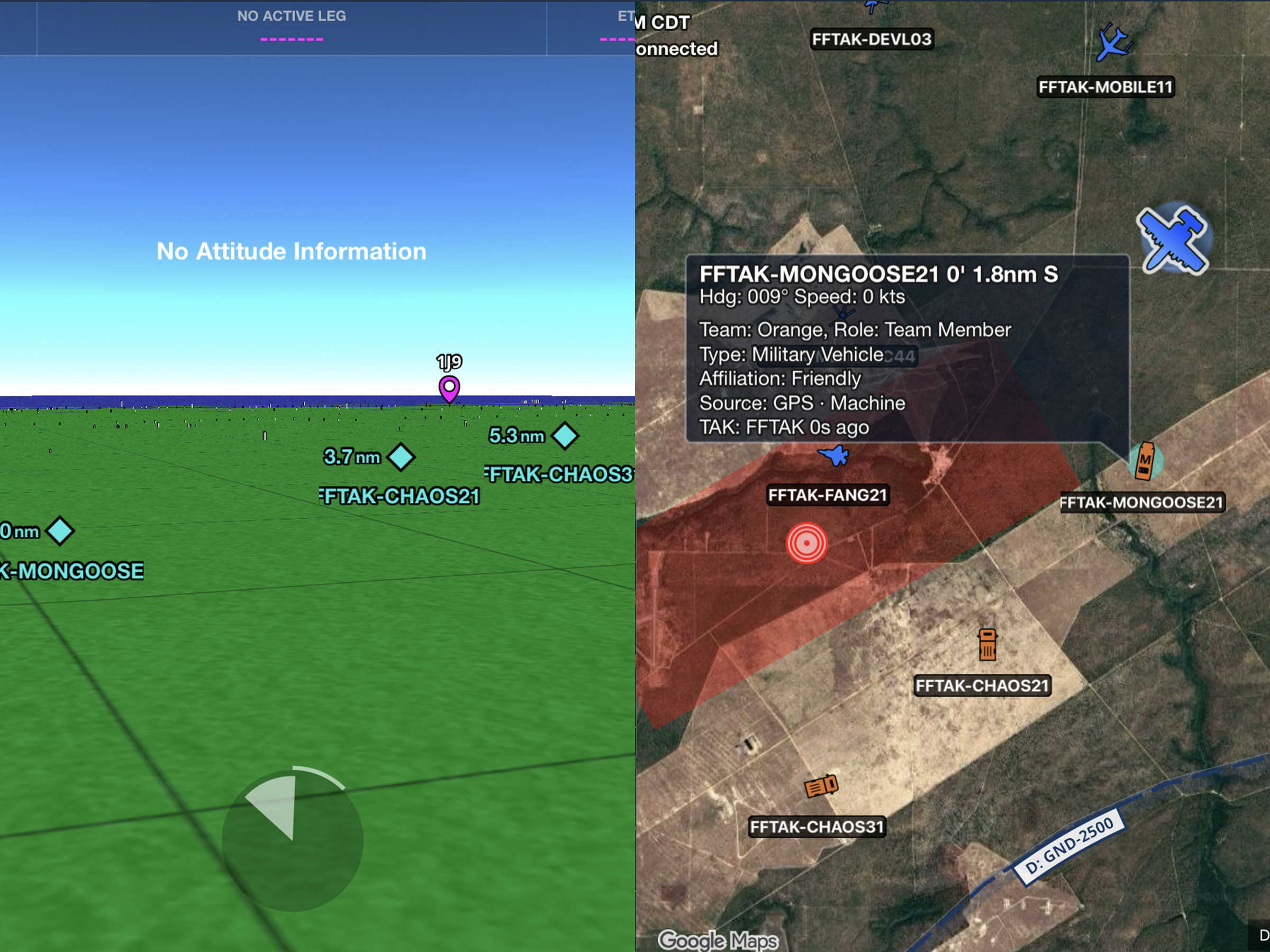
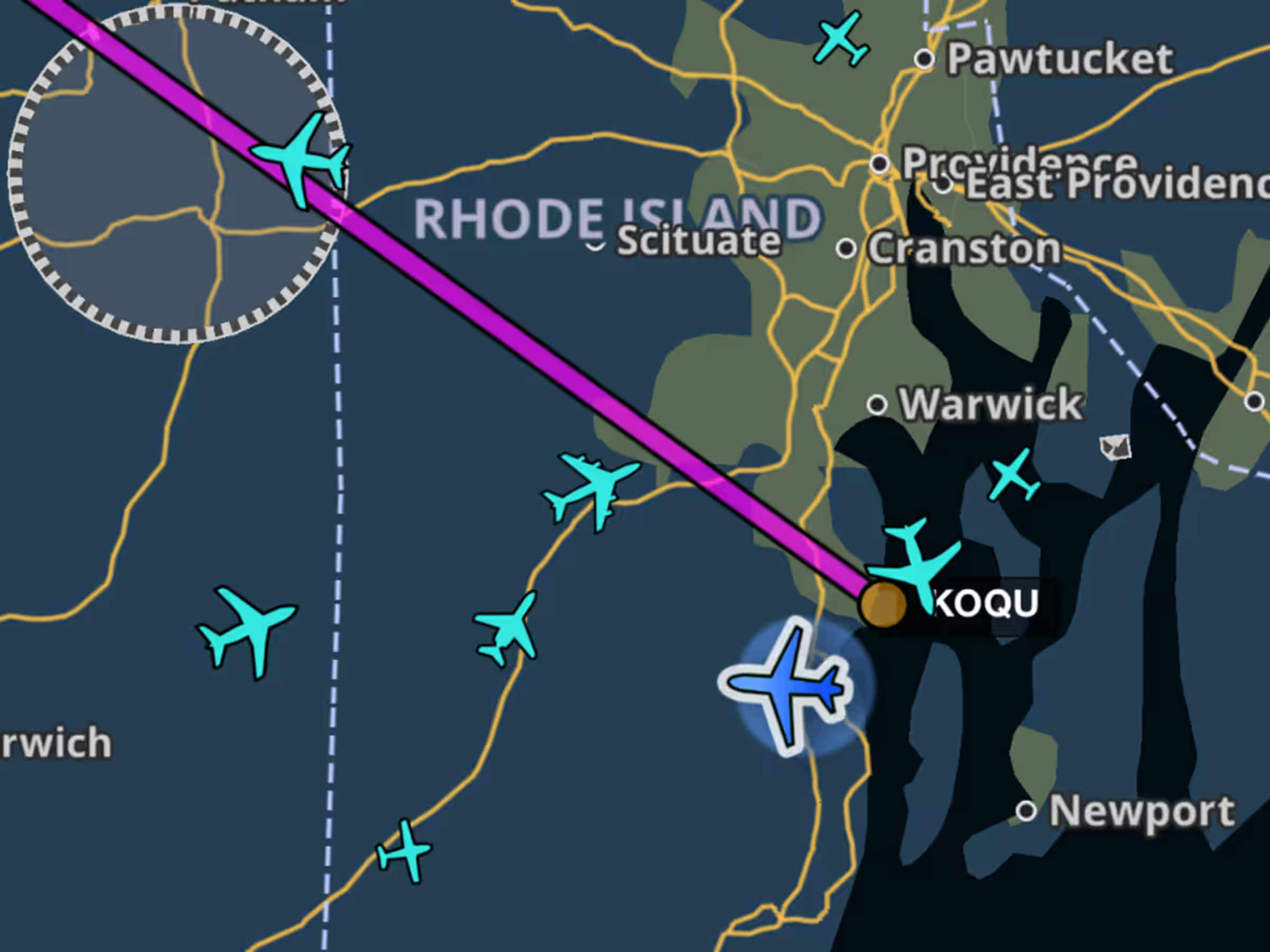
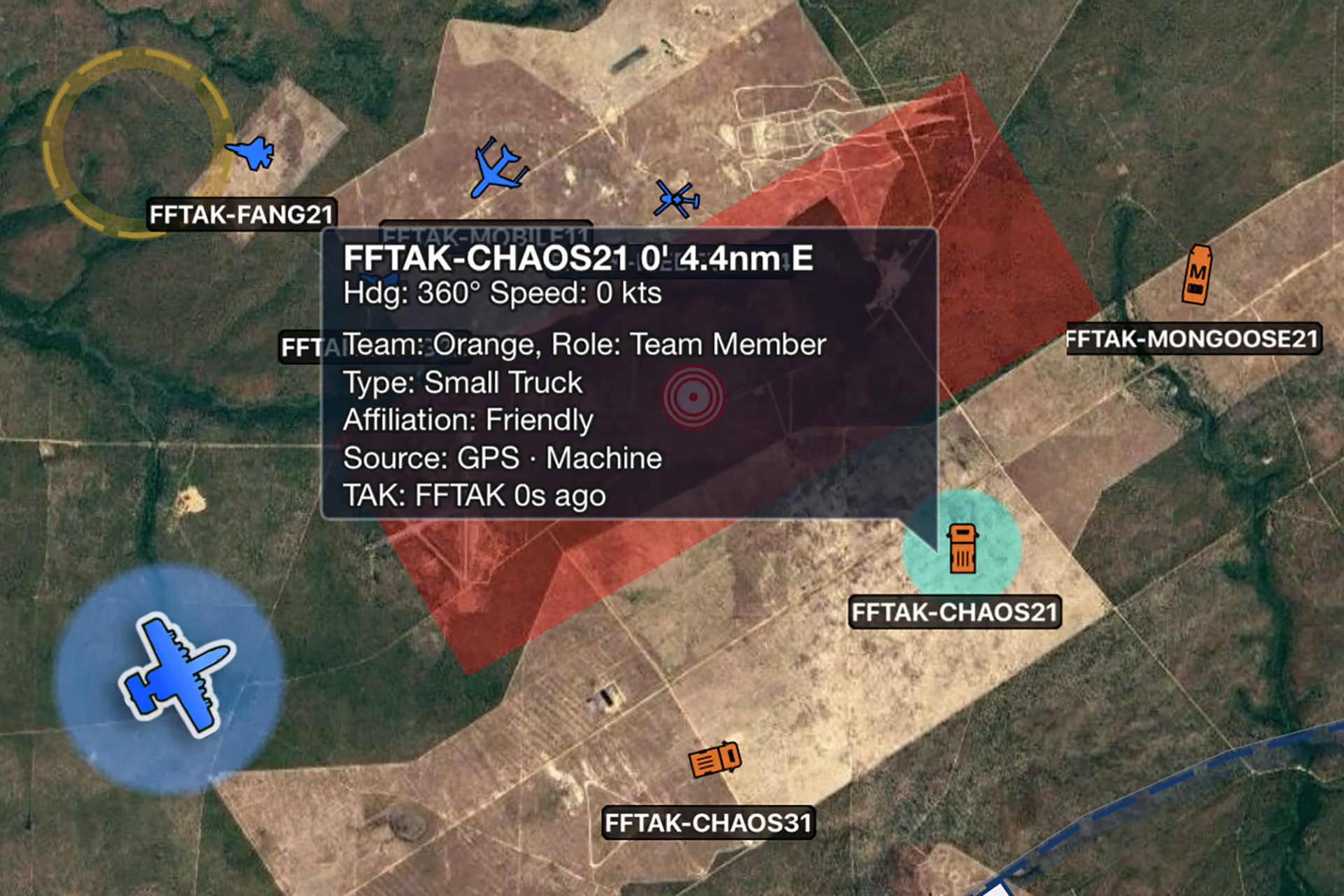
Integrate the real-time tactical awareness of TAK with ForeFlight’s moving map where pilots already view their route, terrain, weather, and more.

Keep track of every asset

Stream your position to the TAK network while bringing every other TAK-connected asset onto the ForeFlight map as live traffic.

Flexible, mission-ready connectivity

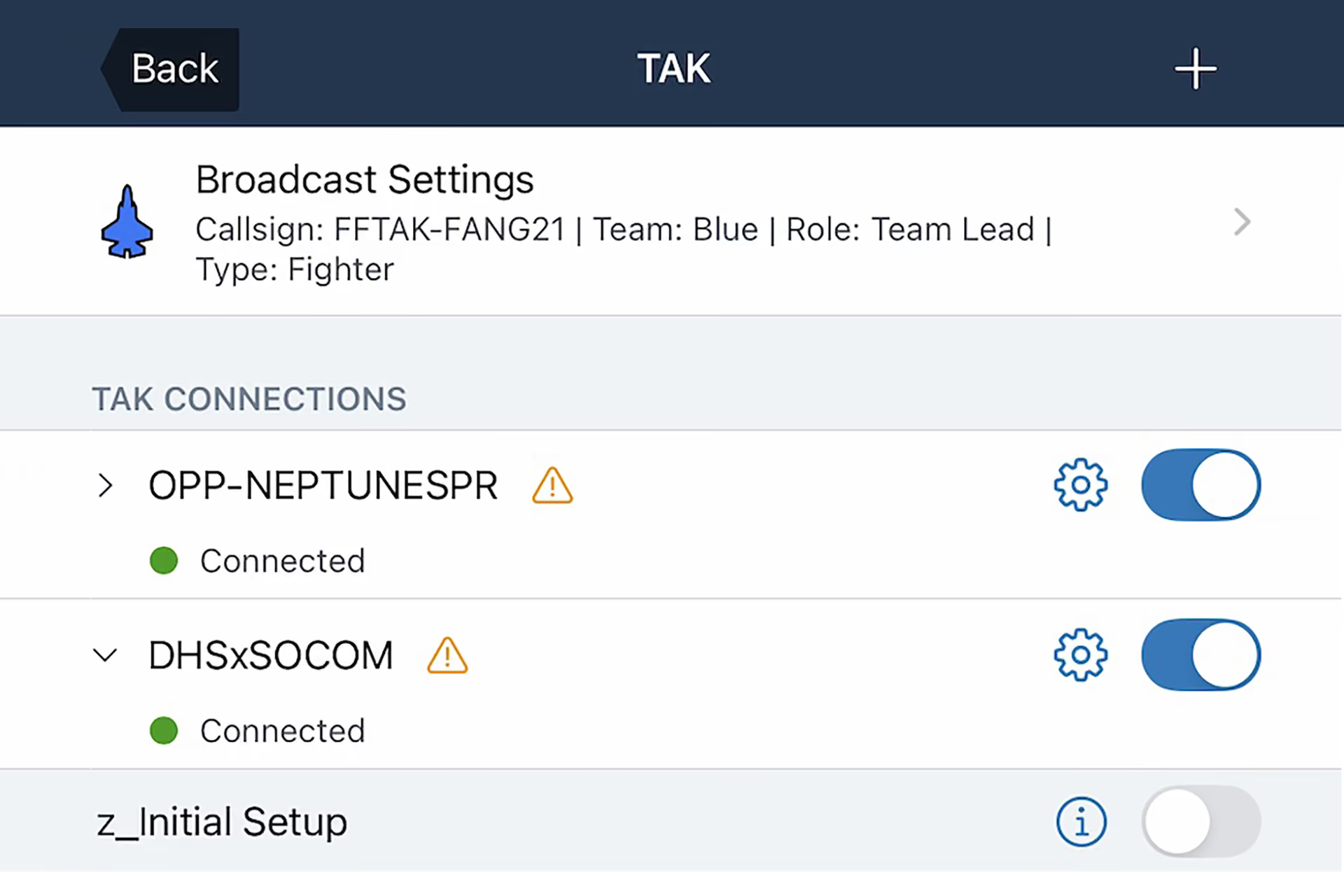
Connect over WiFi, cellular, or specialized airborne radio and networking equipment. Any IP connection capable of reaching the TAK server is supported.

Customize broadcast settings

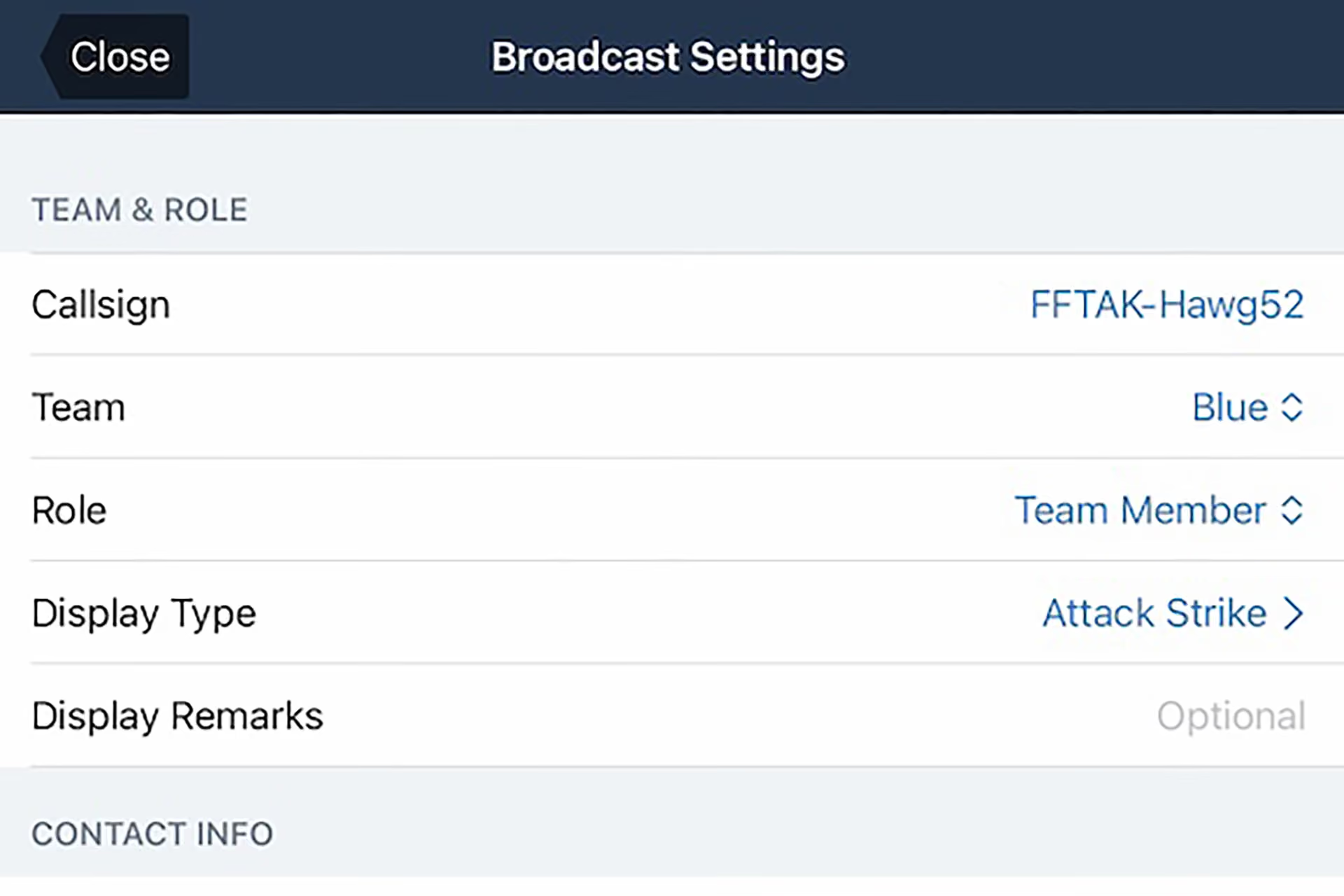
Modify your position icon and details visible to other users on the server in accordance with the official TAK spec — specify a custom callsign and remarks, team colors, role, and over two dozen air, ground, and sea vehicle display types.

Seamless & Secure Tactical Coordination

ForeFlight Team Awareness Kit (FFTAK)

See the full mission picture

Integrate the real-time tactical awareness of TAK with ForeFlight’s moving map where pilots already view their route, terrain, weather, and more.

Keep track of every asset

Stream your position to the TAK network while bringing every other TAK-connected asset onto the ForeFlight map as live traffic.

Flexible, mission-ready connectivity

Connect over WiFi, cellular, or specialized airborne radio and networking equipment. Any IP connection capable of reaching the TAK server is supported.

Customize broadcast settings

Modify your position icon and details visible to other users on the server in accordance with the official TAK spec — specify a custom callsign and remarks, team colors, role, and over two dozen air, ground, and sea vehicle display types.